Catch up from a statement
Catch-up reads a bank statement for one account and checks it against what you planned. Your bills and paychecks are recorded at the bank's amounts and dates, the spending you didn't plan is added, and anything it isn't sure about is put in front of you.
The screenshots are live captures of a demo account.
Last updated
When to catch up#
Forecast Commander works from what you plan, and the easiest way to keep it current is to add things as they happen. Catch-up is for when you've fallen behind, or when you want to check a month against your bank.
It's there when you want it. Nothing reminds you, and nothing counts the days since you last did it.
Starting a catch-up#
- Press Catch up on the account's card on the Accounts page. You can also follow Catch up from it at the bottom of Settle Due.
- Download a CSV statement for that account from your bank, covering the days since you last caught up, and open it on the page.
- For a credit card, the page asks whether a positive amount in the file means money out or money in, because banks write card files both ways.
Transactions from before Forecast Commander started the account are skipped, and the page counts them. History belongs in Import.
What it shows you#
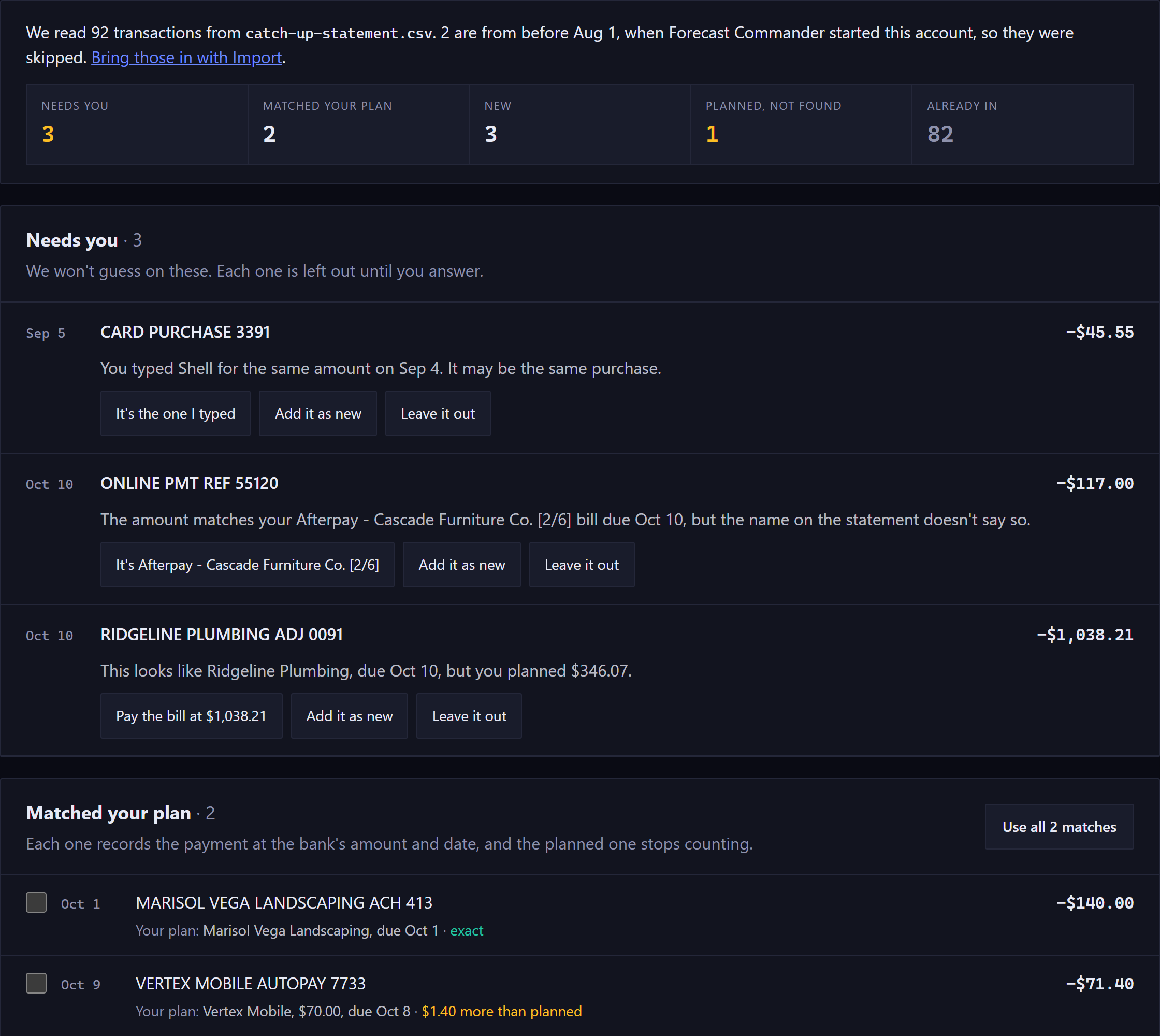
The statement is sorted into groups, with the ones that need you first:
| Group | What it holds |
|---|---|
| Needs you | Transactions it won't guess about. Each one says why, and stays out until you answer. |
| Matched your plan | Your bills and paychecks. Each shows the plan it pays beneath it, and whether the bank's amount or date differs. |
| You typed it, and it pays a bill | Something you entered yourself that is really a planned bill. Linking it means the bill stops counting twice. |
| New | Spending and income you hadn't planned or typed, each with a payee and category to check. |
| Planned, but not in this statement | Bills and paychecks that were due in the statement's dates, with nothing to match them. |
| Already in | Transactions you typed, or brought in last time. They're skipped. |
Choosing what to keep#
- Nothing is ticked to start with. Tick the transactions you want, or use the button at the top of a group to take all of it.
- For something planned that wasn't in the statement, you can:
- match it to a transaction yourself;
- say it's still due;
- say it didn't happen.
- Nothing is saved until you press Catch up. The button counts what you've chosen.
How a transaction is matched#
A transaction matches a planned bill or paycheck when three things agree:
- the payee;
- the amount: the same, or within half of what you planned;
- the date: within ten days of when it was due.
When two plans could fit, or the name on the statement doesn't say who it's from, it asks you. Banks add codes and towns to names, so "SQ *BLUE BOTTLE 1234 OAKLAND CA" still finds your Blue Bottle.
Marked reconciled#
Everything a catch-up accounts for is marked Reconciled: what it records, what it adds, what it links, and what was already in. Reconciled means the transaction was checked against your bank statement. It counts exactly like a cleared one.
That's different from Reconcile Balance on an account, which records a difference when the total doesn't match your bank. See Reconciling to a statement.
Does the bank agree?#
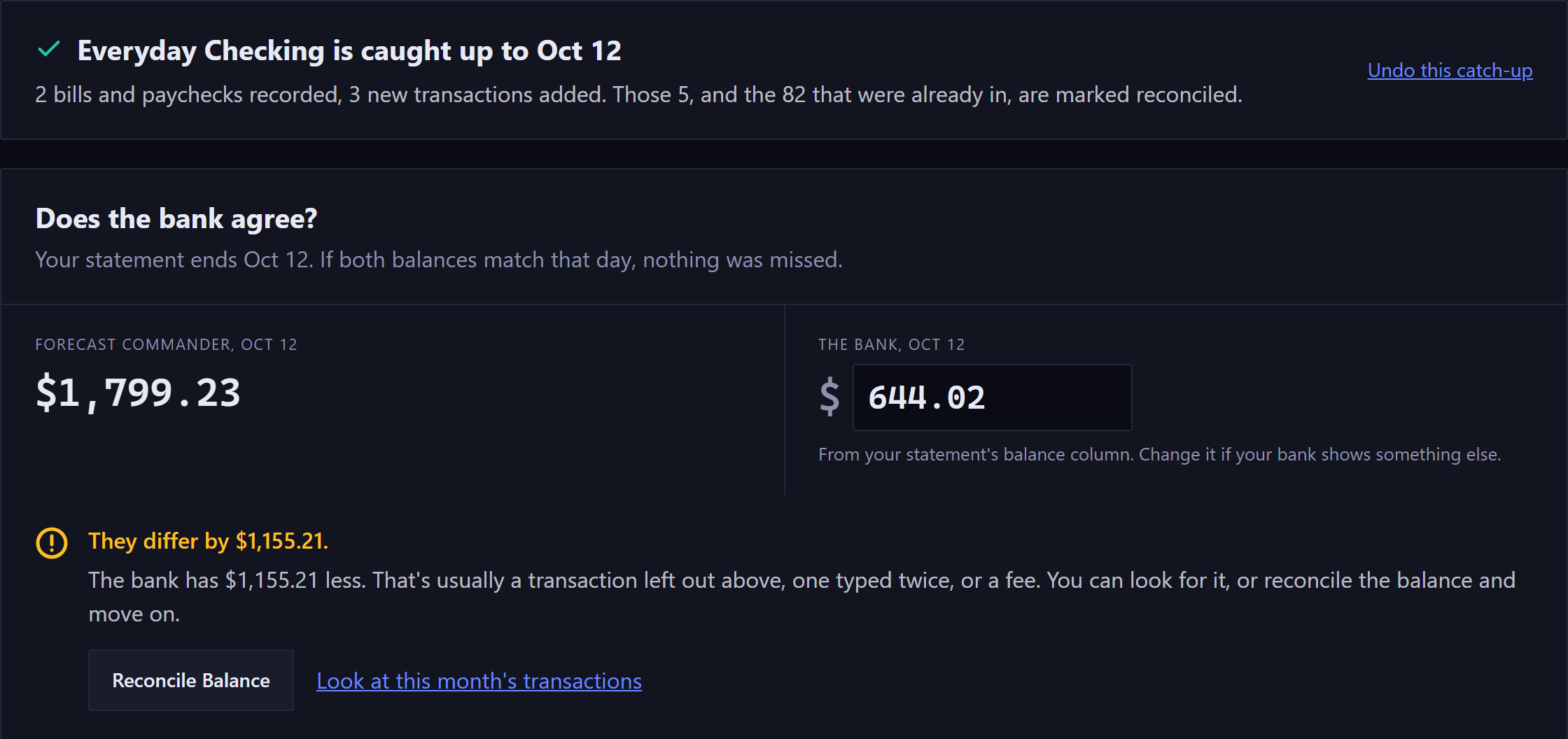
When the catch-up is saved, the page compares the account's balance on the statement's last day with the bank's.
- The bank's figure is filled in from your statement when it has a balance column. Otherwise you type it.
- If they agree, nothing was missed.
- If they don't, it's usually a transaction left out, one typed twice, or a fee. You can look for it, or press Reconcile Balance to record the difference and move on.
Undoing a catch-up#
Undo this catch-up, on the last screen or under Past imports on the Import page, takes the catch-up back:
- it removes what it added;
- it puts back what it changed, including each transaction's status;
- a transaction you've edited since stays as you left it.
Your statement stays on your device#
Your statement is read in your browser. The file itself never leaves your device, and only the transactions you choose to catch up reach the server.
New here? See what Forecast Commander does.