Recurring
Bills and paychecks that repeat. Each one is a rule, and the rule puts it on every future date it's due.
The screenshots are live captures of a demo account.
Last updated
What a recurring rule is#
A recurring rule describes one thing that repeats: rent, a paycheck, a subscription. You set it up once, and it shows up on every future date it's due.
Rules are how the forecast sees ahead. Without them, the app has only what you've already entered. With them, it has the next year of what's coming, and that's where the runway and the low point come from.
When you change a rule, every future date it produces changes with it.
Reading the table#
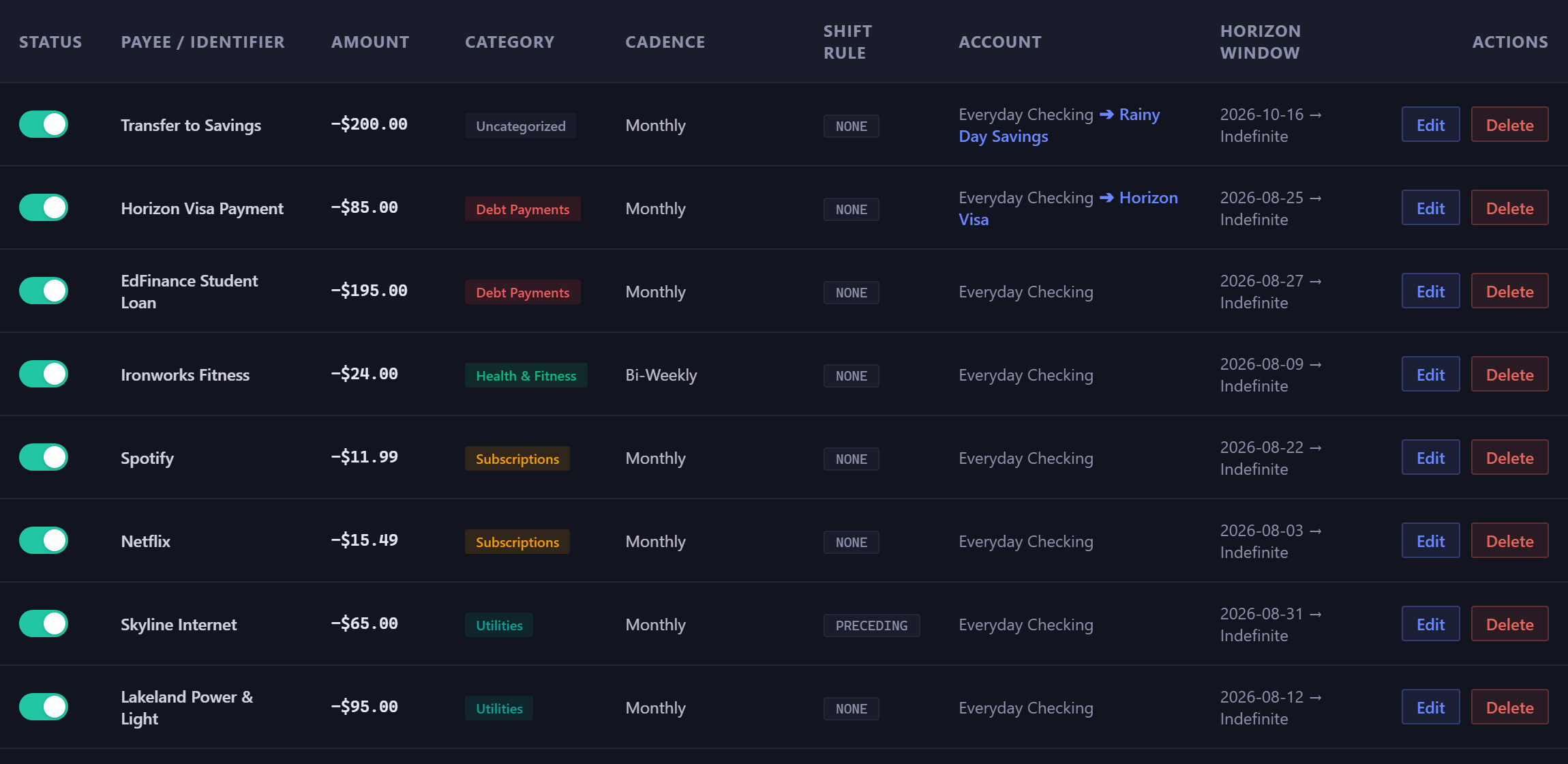
- Status
- A switch. Turning it off pauses the rule without deleting it.
- Amount
- Signed: + for money coming in, - for money going out.
- Cadence
- How often it repeats, written out in full: Monthly, Bi-Weekly, Semi-Monthly (15th & 31st), Weekly on Mon/Fri, First Monday of Month or Every 10 Days, for example.
- Shift Rule
- What happens when a due date falls on a weekend. Preceding moves it back to Friday, Following moves it to Monday, and None leaves it where it falls. The table shows the setting in capitals. Set it to match what your bank or biller does, and the forecast lands the payment on the right day.
- Account
- The account it comes out of. A transfer rule shows both, as Source ➔ Destination.
- Horizon Window
- When the rule starts and stops. A rule with no end date reads Indefinite and keeps going until you end it.

Pausing and deleting#
You can pause a rule or delete it, and they do different things.
- Pausing, with the switch
- The rule stops producing dates right away, everywhere. It disappears from the calendar, the ledger and the forecast, and the low point moves to match. The rule itself is kept, with its amount and cadence, so you can switch it back on. Use this for a subscription you've canceled but might restart, or a bill that's on hold for a few months.
- Deleting
- Removes the rule and any of its scheduled items that haven't cleared. Anything that has already cleared stays in your history, no longer linked to the rule. If your budget periods follow this paycheck, they keep its schedule after it's deleted, and the period bar says they follow a deleted paycheck until you change Period Settings.
If the account a rule pays from has been archived, you can't switch the rule back on. The app says so and asks you to restore the account first.
The start date sets the day#
For a monthly rule, the day of the month you start on is the day it falls on from then on. Start a rule on the 15th and it's due on the 15th every month.
When a month is too short, the rule uses that month's last day. A rule that starts on the 31st falls on the 30th in September and on the last day of February, then goes back to the 31st. It doesn't drift, and it never skips a month.
So if a bill moves to a different day, change the rule's start date. Changing the amount is an ordinary edit.
The three figures at the top#
Monthly In adds up everything your active rules bring in over the next 30 days, starting today, and Monthly Out adds up everything they take out. Net is the first minus the second, so it's negative when your rules take out more than they bring in.
Because these count real dates, a rule paid every two weeks adds two payments to some 30-day stretches and three to others, and the figures move with it.
The Reports page has a figure with a similar name, Monthly Equivalent, and it's a different number. It turns every cadence into a monthly average, so a weekly subscription can be compared with a yearly renewal. The figures here count what's actually due in the next 30 days.
Adding and changing rules#
Add Recurring Rule, or Edit on any row, opens the same form the rest of the app uses, with the repeat options already open. Editing from the Recurring page always changes the whole series.
To change a single date, open that occurrence from the calendar or the ledger. The form then asks whether you mean this instance only, or the entire series. Choosing Entire Series there shows the rule's cadence and end date, the same as editing from the Recurring page.
If your budget periods follow a paycheck (Period Settings, Align to my paycheck), changing when that paycheck comes, whether its start date, how often, or which days, moves your periods from the next period on. Every period before that keeps the schedule it was built on, and the app tells you the date when you save. Changing the amount or the name moves nothing.
Rules can also come from a bank statement. The Data tab in Settings has a reader that finds repeating charges in a CSV file and offers to turn the ones you recognize into rules. They then appear in the table like any other rule.
New here? See what Forecast Commander does.