The transaction form
The Add and Edit form opens from five places and works the same way in all of them.
The screenshots are live captures of a demo account.
Last updated
One form, five places#
The same Add and Edit form opens from a day on the calendar, a row in the ledger, the Recurring page, an installment on a BNPL plan, and a detected bill on the statement reader.
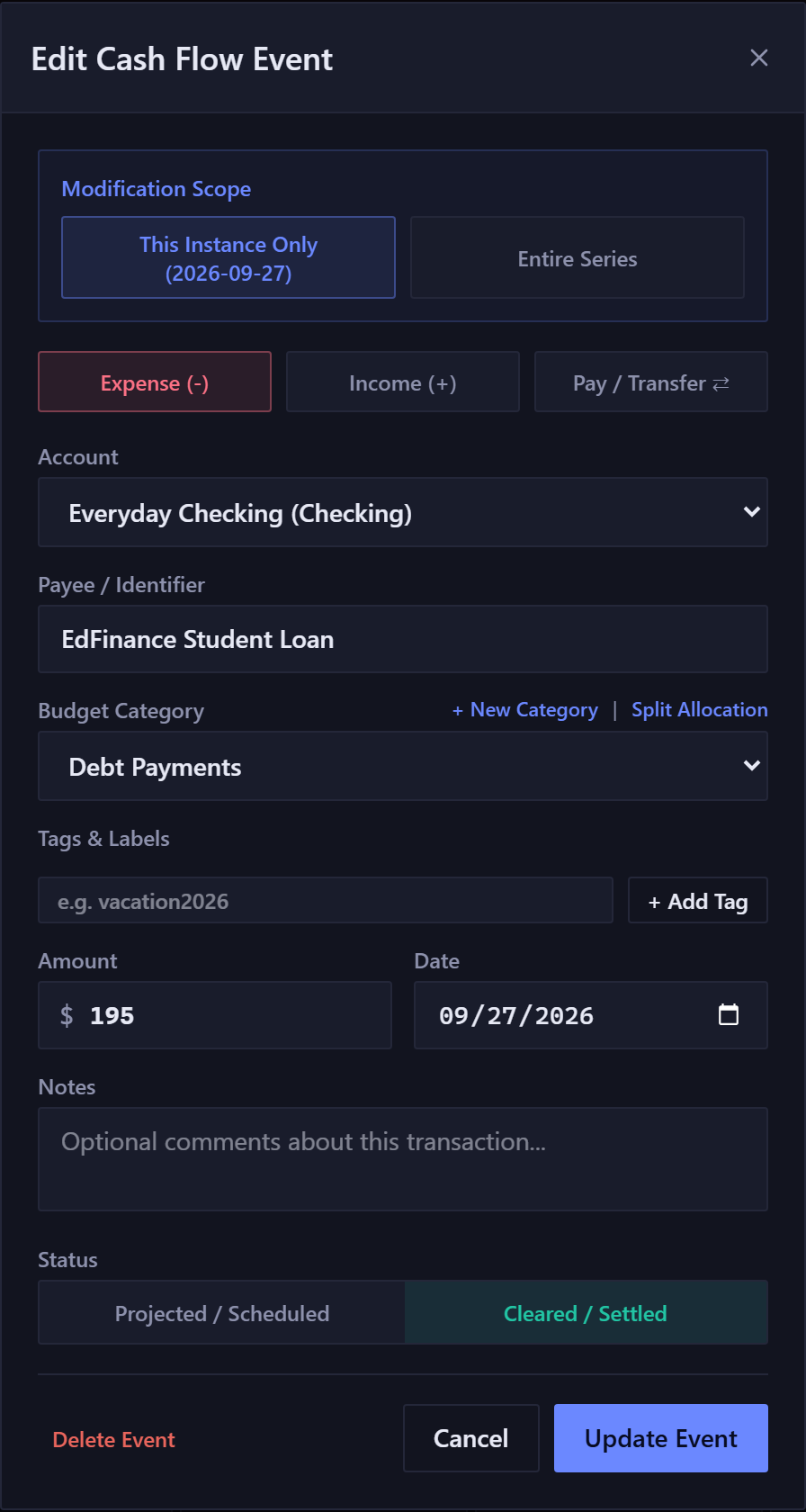
Its title is Add Cash Flow Event or Edit Cash Flow Event, and what it shows depends on where you opened it.
Expense, income, or transfer#
The three buttons at the top change what the rest of the form asks for.
- Expense and Income
- Money leaving or arriving. You pick one account and a category.
- Pay / Transfer
- Money moving between your own accounts, so it asks for two: a source and a destination. The category stays, as an optional label: a card payment filed under Credit Card Payment shows up when you filter the ledger by that category. Whatever category it carries, a transfer never counts as income or spending. Budgets, the ledger's totals and category breakdown, and the reports that add up income and spending all leave it out.
When the destination is a credit card or loan, an optional Interest / Fees block appears. Interest put there is recorded as a real cost, and it doesn't count as paying down the balance. A live line shows the split before you save.
Splitting one amount across categories#
Next to Budget Category are two links. New Category creates one without leaving the form. Split Allocation divides this one transaction across several categories, like a supermarket trip that was half groceries and half household goods.
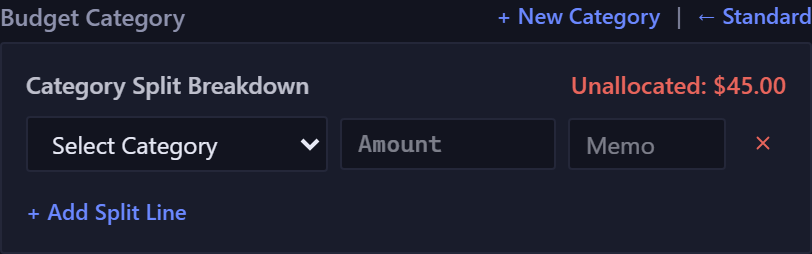
A live readout says Allocated 100% when the lines add up, or names what's still unallocated. The form won't save until it balances.
In the ledger, a split transaction shows as Split · N categories, and its money counts in each category it touches.
Status#
Projected / Scheduled means it hasn't happened yet and the forecast is counting on it. Cleared / Settled means it has.
In the quick entry bar you never choose: the date decides, and a line under the field tells you which it'll be. In the full form you can set it yourself, as you would when settling something.
A cleared entry can't be dated in the future. Choose Cleared / Settled with a future date and the form warns you: "Cleared transactions can't be dated in the future; this will save as today's date."
Making it repeat#
Tick Repeat this transaction to turn a one-off into a recurring rule. The box appears when you're creating something, and when you edit a recurring rule as an entire series, from the Recurring page or from any of its occurrences. It never appears for a single occurrence.
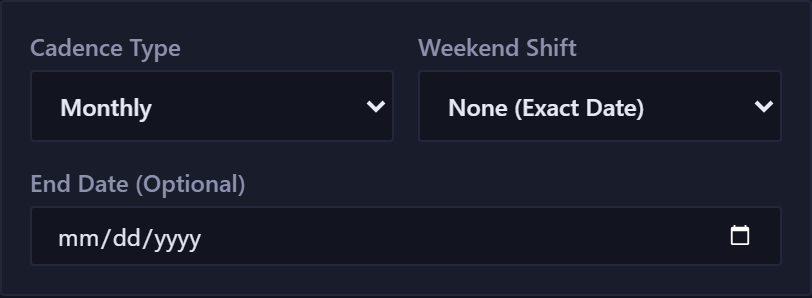
- Cadence
- Daily, weekly, every two weeks, twice a month, monthly, yearly, or a custom interval. The custom option also covers specific weekdays and the nth weekday of a month, for bills like "the first Monday".
- Weekend Shift
- What happens when a due date lands on a weekend: leave it, pull it back to Friday, or push it to Monday. Match it to when the money really moves, and the forecast gets the day right.
- End Date
- Optional. Without one, the rule runs indefinitely.
This instance, or the entire series#
When you open something that came from a recurring rule, a Modification Scope panel appears at the top with two buttons. Your choice decides what saving or deleting does.
- This Instance Only
- Changes one date. Use it when a bill was unusually high this month, or when you're settling a single occurrence. The rule and every other date stay as they are.
- Entire Series
- Changes the rule, and so every future date it produces. Use it when the rent has actually gone up.
In Entire Series the form shows the rule itself: its cadence, weekend shift and end date. The Date field becomes the rule's start date, the day every occurrence is anchored to. In This Instance Only, the Date field is the date of that one occurrence.
A rule opened from the Recurring page starts on Entire Series. An occurrence opened from the calendar or the ledger lets you choose.
Deleting follows the same choice. To skip one month of something, delete that single future occurrence: it leaves the forecast, and the rule stays as it is.
New here? See what Forecast Commander does.