Budgets
Videos on YouTube:Budget by paycheck Four ways to budget
Set what you plan to spend in each category, carry what you don't spend if you want to, and watch the categories you only want to measure.
More on choosing a period: Budgeting by paycheck.
The screenshots are live captures of a demo account.
Last updated
Budgeting from what you have#
Budgeting starts with what you have, takes away what's already committed, and shows what's left to plan with. A category budget can be a plain amount, one that carries what it doesn't spend into the next period, or a group's target as a share of income.
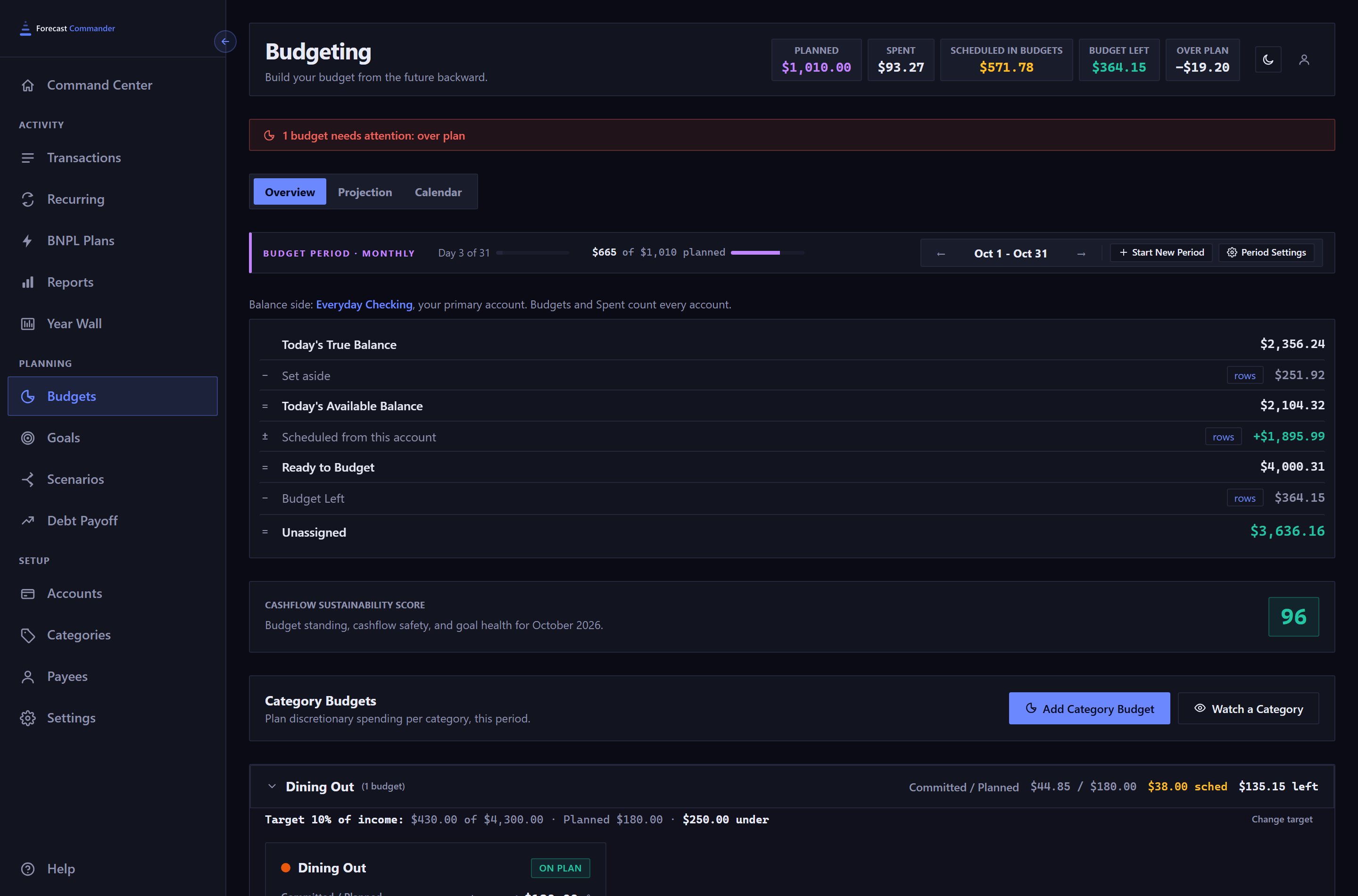
Budgets can only be changed in the current period#
Page back to last month and the edit pencils disappear. So do Add Category Budget, Pause, Remove Budget and Rollover, and the subtitle above the cards changes to "Budgets can only be changed in the current period."
An edit to a budget changes the plan from now on. Come back to the current period and everything is editable again.
One thing works in every period: dismissing an alert with Got it. A dismissal belongs to the period you're looking at.
Choosing a budget period#
A budget period is whatever length you choose, and Monthly is the default. Open Period Settings from the bar for the four choices:
- Monthly
- One calendar month.
- Semi-Monthly
- Two periods a month, on days you choose, such as the 1st and the 15th.
- Biweekly
- Every 14 days. It drifts across month boundaries, the way a biweekly paycheck does. If you have income rules, it can be aligned to one, so periods start on your payday.
- Custom
- Any interval: every N days, weeks, months or years, up to a year.
A new cadence starts at the beginning of the next period, worked out under the cadence you're leaving, and a second screen asks you to confirm it first. Until then the bar names the cadence you're in, with a line under it saying what's coming and when.
Change it again before then and the later change replaces the earlier one. The confirmation says which change it's replacing.
The period you're in finishes as it was, and past periods keep the dates and labels they had. A period that ran as a calendar month is still labeled "August 2026" once you've switched to Biweekly.
The first period of a new cadence can be shorter or longer than usual, so that every period after it starts on schedule. A first period of at least half a period stands on its own. Anything shorter joins the next one, since every period carries your full Planned amounts.
Switching to Biweekly on October 1 with a payday on October 8 gives a first period of October 1 to 7, then every two weeks from October 8. With a payday on October 2, one day is too short, so the first period runs October 1 to 15 and the regular rhythm starts October 16. When the first period isn't an ordinary one, the confirmation names it.
Periods aligned to a paycheck keep the schedule they were built on. If you later change when that paycheck is paid, the new schedule takes over from the next period, with the same first-period rule, and earlier periods stay put. Delete the paycheck and your periods keep its rhythm until you change Period Settings.
Start New Period ends the current period today and begins the next, which runs to the next natural end of your cadence. Pressed on the 6th of a monthly period, the new period runs from the 6th to the month's last day, and the days before it become a period of their own. It's for irregular or freelance income that doesn't arrive on a schedule.
Each period keeps its full Planned amounts, so a period cut short still counts in full for rollover and the score. A cadence change waiting for the next boundary starts today instead, with its first period following the same half-period rule from today, and the dialog says so and names that period.
What the equation counts#
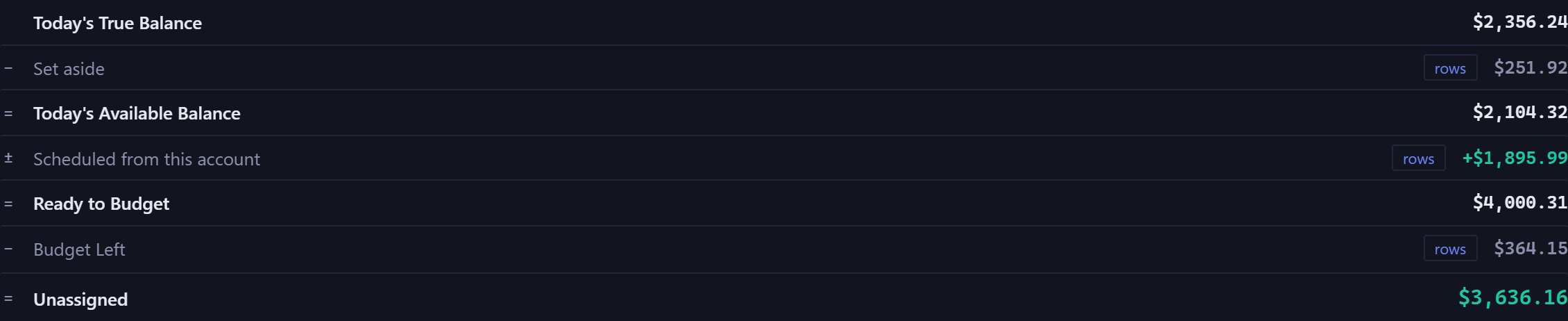
This is the same equation the Command Center shows, asked about the period you're browsing. In the current period the first term is Today's True Balance, the figure the Command Center leads with.
Browse back and the first term becomes the balance on that period's last day, with everything dated up to then included. Browse forward and it becomes that period's Starting Balance: the balance at the end of the day before the period starts, the same figure the Command Center's row starts from for that period. The label on the term says which.
The two halves of the equation count different accounts. The balance half, from True Balance through Ready to Budget, reads your primary account, and a line above the row names it. The category half, Budgets and Spent, counts every account, since a budgeted category can be paid from anywhere.
In Budget Left, a category that's over its budget counts as zero. Its overage is already spent or already on the calendar, so the balance half has it, and it isn't taken out twice. The Over Plan tile in the strip shows the total overage.
Scheduled in budgets and Scheduled from this account are different figures. Scheduled in budgets, in the strip at the top, is uncleared spending inside budgeted categories, on every account. Scheduled from this account, in the equation, is everything still ahead on one account's calendar before the period ends, income and spending netted, so it can add to Ready to Budget as easily as take from it. Early in a period, with bills scheduled and paydays still ahead, it's usually a plus. The two won't match.
Category budgets#
Video on YouTube:Running a budget
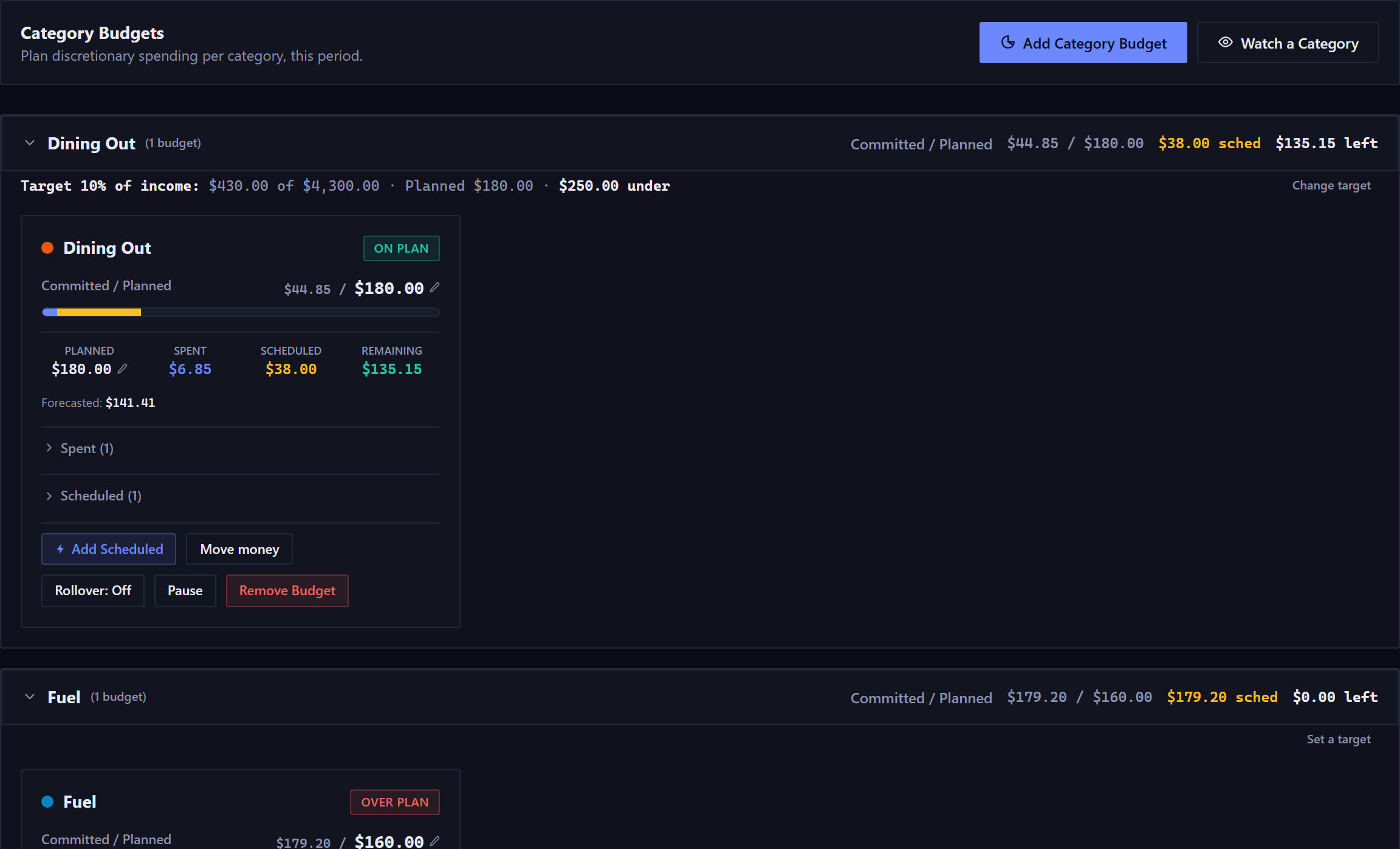
- The group panel
- Every budget sits in a panel for its category, even a category with one budget. The panel header carries the group's own figures, and each is the sum of a column on the cards below it: how many budgets it holds, committed against planned, what's scheduled if anything is, what's left, and, where any budget in the group carries a rollover, what's left once that rollover is counted.
- Where no budget in the group carries a rollover, the header reads Committed against Planned and matches its cards word for word. Where one does, it says carry included. An overspend carried in counts against committed, since it's spent out of this period's planned amount first. Money carried in counts into planned, since it stays reserved until this period's planned amount is used up.
- Committed already contains what's scheduled, so planned less committed is what's left. Click the header to collapse the group. A paused budget stays in its group and out of its arithmetic.
- The health chip
- On Plan or Over Plan, and neither is a prediction. Over Plan means what you've spent plus what's already scheduled has passed this period's plan. On Plan means it hasn't.
- The chip on a rolling category
- The chip reads this period's Planned amount, and money carried in doesn't raise it. A category that planned 100 dollars, carried 600 in and spent 650 reads Over Plan, since it's past what it planned for this period, and With Rollover beside it still shows the 50 dollars it holds. The chip reports the plan and With Rollover reports the money, so the card says both. A carried overspend works the other way and lowers the plan, since it's paid out of it first.
- Planned, Spent, Scheduled, Remaining, and the rollover line
- Spent is what has cleared. Scheduled is what's on the calendar and hasn't cleared yet. Remaining subtracts both, so it can be lower than you expect. Transfers and payments to your own accounts and debts aren't spending and never count.
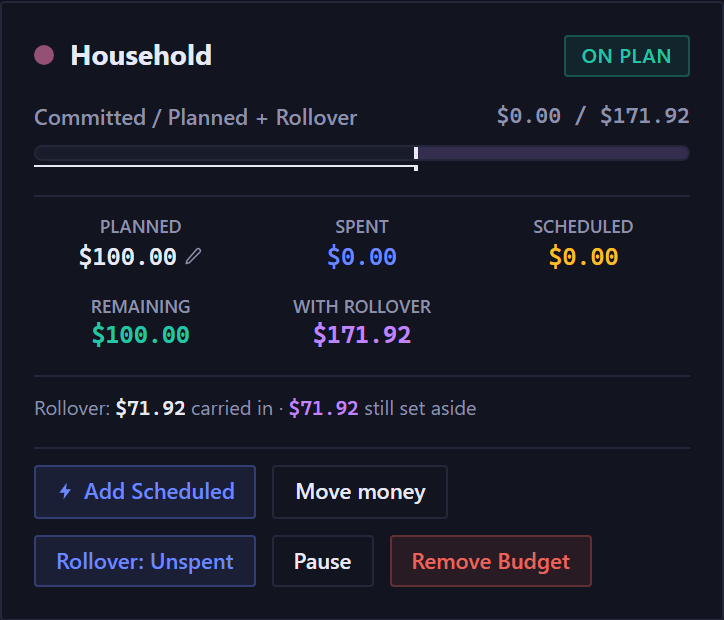
- Under the five figures, a category that carried something in reads "Rollover: $150.00 carried in · $150.00 still set aside", or "Rollover: -$75.00 overspend carried in" when it carried a debt. A category that carried nothing has no rollover line, and its rollover button still says which mode it's in.
- The label above the bar, and which side the carry is on
- It reads what this period has used over what there was to use. Money carried in sits on exactly one side, decided by its sign. Money the category still holds joins the right-hand figure: "Committed / Planned + Rollover". A carried overspend is money already gone, spent out of this period's Planned amount before anything else, so it joins the left: "Committed + carried overspend / Planned".
- Take the left side from the right and you get the With Rollover figure printed under the bar, on every card. A category that has spent past everything it holds reads a left-hand figure larger than its right-hand one, the same as a category with no rollover at all.
- The label doesn't give the bar's width. A carried overspend is drawn at the far left of the bar, where a denominator can't account for it. The Bar measures line directly underneath states the bar's width.
- The marker, and the zone past it
- A white marker sits where this period's plan ends, with a white rule under the bar running up to it. Past the marker the track is tinted: faint purple where a category carried money in, money it still holds and hasn't touched, and faint salmon where it has gone past everything it has. You can see the moment the fill crosses the marker. A category with nothing carried in and nothing overspent has no marker, since its plan is the whole bar.
- With Rollover
- On a rolling category only, a fifth figure: everything the category holds, this period's Remaining plus whatever it carried in and hasn't spent. On the bar it's the gap from the fill to the end of the track. Remaining is the gap from the fill to the marker.
- Forecasted
- Where this category is heading, shown only where the app has evidence: what has cleared, what's scheduled, and your everyday spending here at its recent rate. That rate needs spending on several separate days before it exists, so many categories show none, and a new account shows none until it has enough days of spending. For a category driven by a recurring bill it's cleared plus scheduled, with no rate to project.
- Pause
- Stops measuring a category without losing its amount. Spending is still recorded, just not judged. The card stays visible and marked Paused, with its bar flattened and its planned amount kept.
- When something needs attention
- A banner above the tabs counts the budgets that are over plan, and reads, for example, "1 budget needs attention: over plan". It counts scheduled money as well as spent, so it warns before the money leaves: a $250 budget with $180 spent and a $100 repair booked for next week is $30 over today. A watched category past its mark is counted in the same line.
- Click the banner and the cards open in a side panel, Budgets Needing Attention (Watched Categories when only watches are past their mark), with Adjust Amount and Got it on each. Close it with Close Panel, the close button or Escape. On the Command Center the same cards sit in the Budget Period panel, opened.
Rollover#
Video on YouTube:Running a budget from 0:41
By default a budget resets each period, and what you didn't spend is gone. Rollover changes that for one category, so what's left over carries forward. The carried amount is called Rollover everywhere it appears, and it's signed: a category carrying a debt reads -$75.00.
- Off
- Leftover resets each period.
- Unspent
- What the category doesn't spend carries into the next period. Overspending is absorbed, and doesn't carry.
- Both
- Unspent money carries forward, and so does overspending. A category that went over starts the next period short by that much, and pays itself back out of it.
Each budget card says which of the three it's using.
A positive rollover is money set aside. It joins the Set aside term, so it stops counting as spendable, the same as a savings goal. Within a period, spending draws on this period's planned amount first, then the rollover. A negative rollover applies at once: it comes straight out of this period's budget for that category.
Spending money that was already set aside doesn't change what's free. The rollover goes down and the amount available for budgeting goes up by the same amount, so Unassigned holds still.
Turning rollover off on a category that holds money warns you first, and names the amount it releases.
Moving money between categories#
Video on YouTube:Running a budget from 1:41
When one category runs short and another has room, move the money across. Open the category that has it, choose Move money, and pick where it goes and how much.
You can move whatever the category still has, and the card already shows that figure: With Rollover where the category carries money, and Remaining where it doesn't. The dialog shows the number before you type, and a larger move is refused.
- Both plans stay as you set them
- Both PLANNED tiles keep the numbers you set. The move shows as its own line on each card, naming the other category.
- The bar shows it leaving
- Money moved out is drawn in gray, after any carried overspend and before what you've spent: money already gone, just not spent here. Money moved in isn't a band, since it isn't spending. It widens the category's own zone and moves the planned marker with it.
- It counts as this period's money
- A category topped up by a move and then spent into isn't over plan, and one that sent money away is measured against what it has left. A category already over plan gets closer to level with every dollar moved in, and reaches it when the move covers the overspend.
- Undo one at a time
- Each move is kept as its own record, so the card lists them and any single one can be undone. Both cards go back to exactly the figures they had.
Moves belong to the period they were made in, and only the current period's can be changed. A paused category can't send or receive money.
Watching a category without budgeting it#
Sometimes you want to know what a category costs without committing to a number. Watching it does that.
A watched category is measured, never committed. It isn't in the equation and can't move Budget Left or Unassigned, and its block says so: "Measured only. These do not affect Budget Left or Unassigned. Transfers and payments to your own accounts and debts do not count as spending."
You can give a watch an optional mark: a line to be aware of, never a limit. With one set, the row reads something like "Tracking to $340 by Sep 30 · over your $300 mark". Without one it just measures. In a past period the same row reads "Ended the period at $340", and a category with nothing yet reads "Tracking to $0 · nothing yet this period".
A category is watched or budgeted, never both. To budget a watched category, unwatch it first. The picker doesn't offer a category you already budget.
The Cashflow Sustainability Score#
Video on YouTube:Running a budget from 2:58
Between the equation and the cards sits one number out of 100. It weighs three measures together: whether spending in each active budget stays within what it holds, this period's plan plus anything carried in (40); whether the projected balance stays above your safety floor or debt ceiling across the horizon (35); and how healthy your savings goals are (25). A score of 90 or more shows green, 60 to 89 blue, and below 60 red.
The line under the title names what was measured. When no budget is active in the period, the score is built from the other two measures alone, and the line says so.
The Projection and Calendar tabs#
Video on YouTube:Running a budget from 2:58
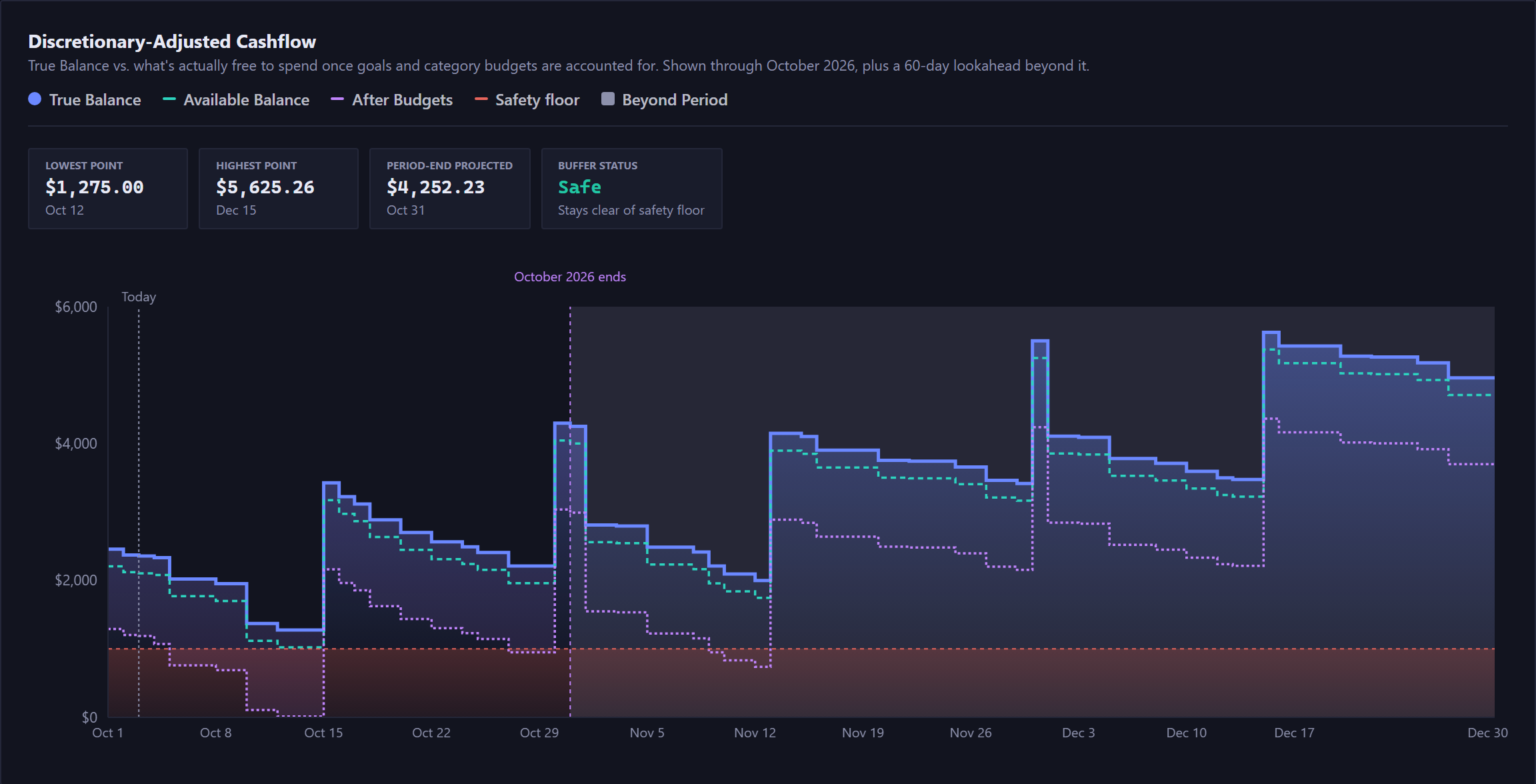
Projection checks the budget against your calendar. It draws your true balance, then the same line once goals are taken off, then again once budgets are taken off. The gap between the top and bottom lines is everything you've already committed.
Four figures sit above the chart: the lowest and highest points inside the window, the projected balance at the period's end, and your buffer status. The chart marks today and the period's end, and shades the 60 days after the period as a lookahead.
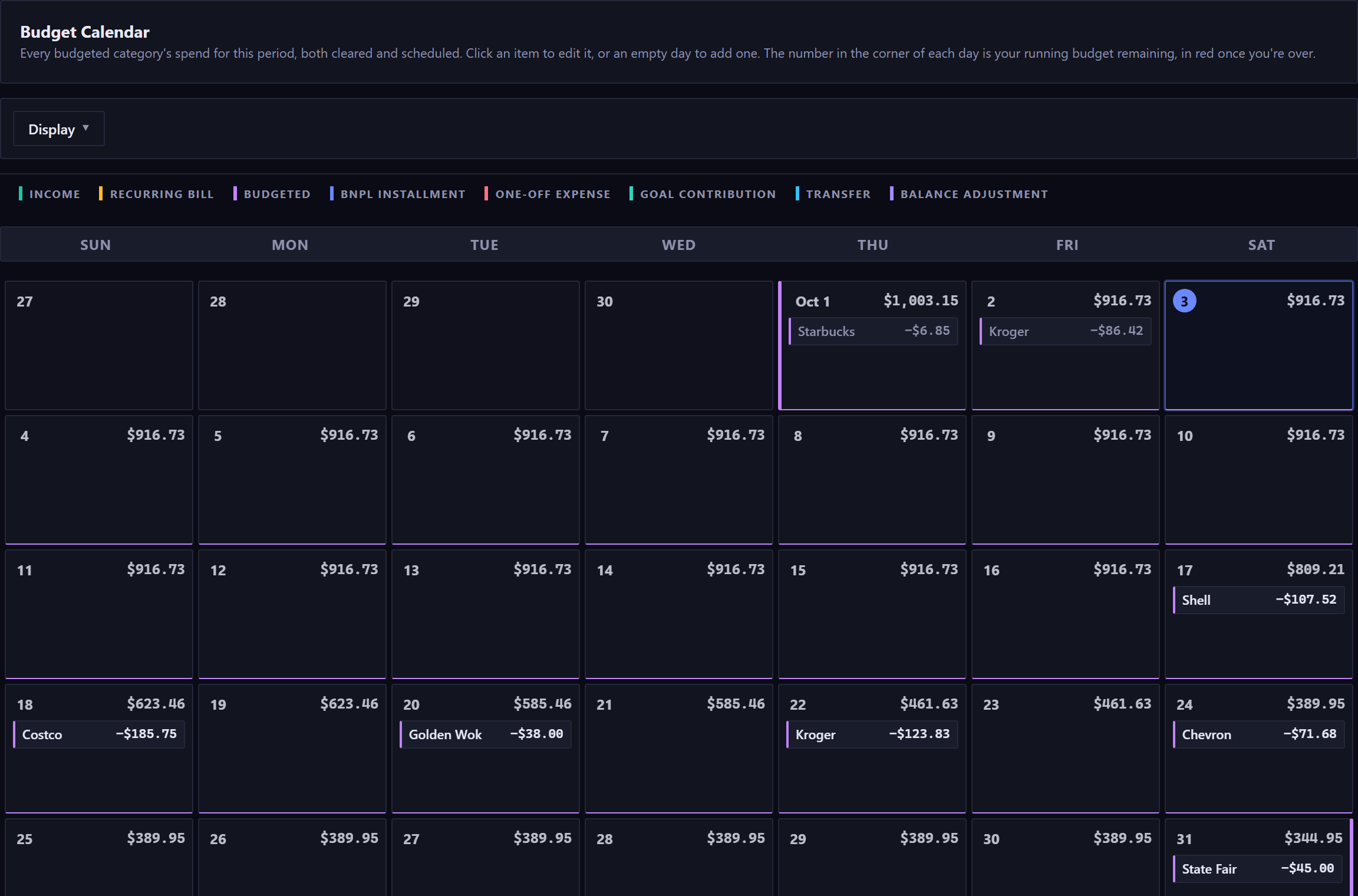
Calendar lays out every budgeted category's spending on the days it happens, across all your accounts. The number in each day's corner is your running budget remaining, in red once you're over. The grid shows the period you're browsing. To see another, page the period bar above it.
New here? See what Forecast Commander does.