Goals
Savings goals hold money back from what you can spend, without moving it anywhere. Name an amount and a date, say which accounts fund it, and the money you've set aside stops counting as spendable.
The screenshots are live captures of a demo account.
Last updated
What a goal does#
A goal names an amount and a date, and holds that money back from what you can spend. If you're saving $2,000 for a trip in March, the money you've already set aside stops counting as available.
Nothing moves. The cash stays in whichever account it's in. A goal is an earmark, not a transfer: it changes what the app tells you is spendable, not what your bank says you hold.
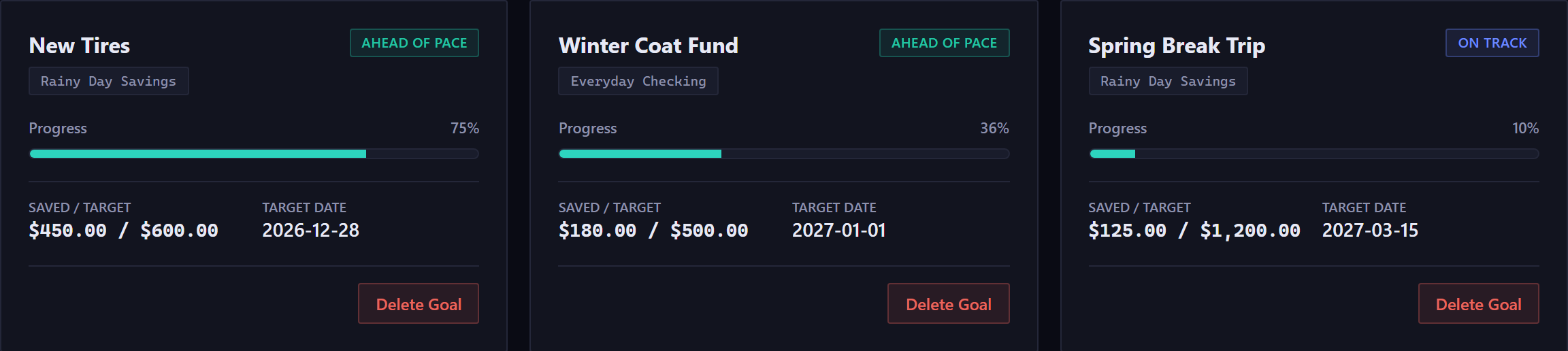
The earmark is the Set aside figure on the Command Center. Creating a goal makes your available balance go down without anything leaving your account.
Funding sources and slices#
One or more accounts fund a goal, and each takes a slice of the target: the part that account is responsible for. When you create a goal, the slices must add up to the target exactly, and the form won't save until they do.
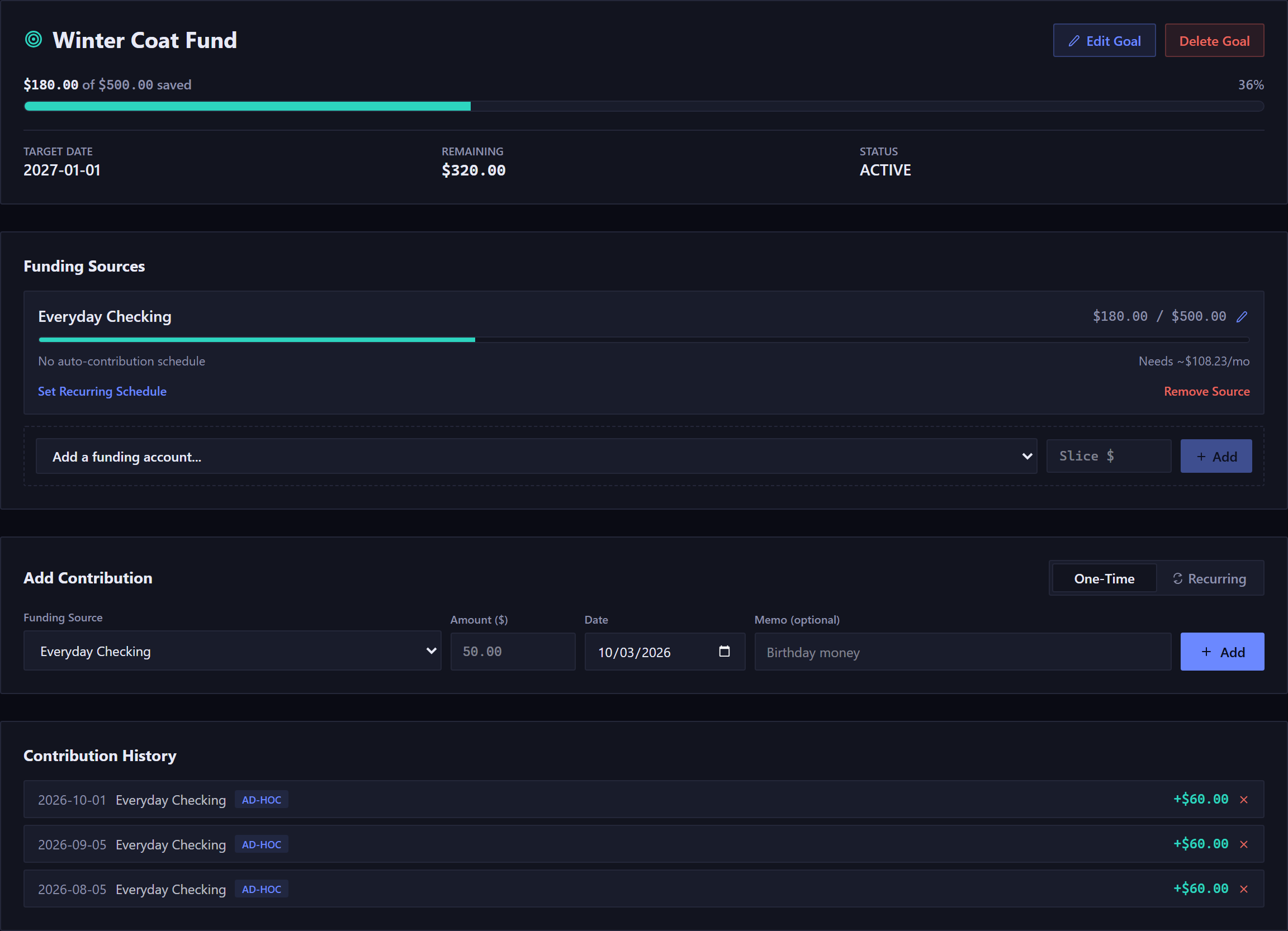
Each source can have its own automatic contribution schedule: an amount and a cadence. Each date shows on your calendar and chart, and counts toward the goal from that day on. No money moves between accounts, so your true balance never changes. The amount comes out of what you have available to spend.
Only asset accounts can fund a goal, so credit cards and loans aren't offered.
What counts as saved#
A contribution counts from its date, whether or not you've done anything about it. There's nothing to confirm.
So the contribution history shows rows marked From schedule alongside the ones you recorded by hand. Those are contributions the schedule says are due, and they already count toward your progress and toward the money set aside. Each one offers Adjust, if the amount for that date should differ, and Skip, if it didn't happen at all.
The status badges#
- On Track / Ahead of Pace / Behind Pace
- How you're doing against the date, counting what you've been able to put aside recently (scheduled contributions included) and what the funding account already holds. Ahead of Pace means you've recently put aside at least what the date needs each month.
- Funded
- The target is reached.
- Needs Attention
- The date has passed and the goal isn't funded.
- Not Funded
- No funding source at all. It's shown in neutral gray.
Deciding what happens at the end#
A goal asks for a decision when it hits its target, when its date passes while it's still short, or when its funding no longer covers the target because an account was deleted. The Command Center shows a banner, and the goal shows a card headed This Goal Needs a Decision.
The banner reads, for example, "1 goal needs a decision: fully funded early". Click it and the same choices open in a side panel, Goals Needing Attention, one card per goal. Close Panel, the close button or Escape closes the panel.
The five choices differ in what happens to the money:
- Extend
- Moves the target date and keeps everything running. Nothing else changes.
- Spend Now
- Writes a real expense out of each funding account for the amount saved. Use it when you've spent the money on the thing.
- Move to Account
- Writes a real transfer, moving the earmarked money into an account you pick. It's the one choice that moves money between your accounts.
- Convert
- Rolls the saved amount into a brand new goal, carrying the funding sources across, and archives this one.
- Return to Spendable
- No money moves. It stays where it is and stops being earmarked, so it counts as spendable again.
Every closing action except Return to Spendable first records the scheduled contributions the goal was already credited with, each dated when it was due, so your history says what happened. Return to Spendable records none.
Adding to a goal#
A goal's detail page has an Add Contribution section with two modes. One-Time records a single amount on a date, for a windfall. Recurring sets up an automatic schedule from one funding source, with the same cadence options as any recurring rule.
A goal contribution on the calendar opens a small window of its own, not the transaction form, since a contribution isn't a transaction and never moves your balance. The window shows the amount with no plus or minus sign.

Changing or skipping one month#
Two things can happen to a single scheduled date, and each has its own control in both the calendar window and the contribution history.
- Adjust records a different amount for that date. Use it when you put in more or less than the schedule says.
- Skip this month records that nothing was set aside on that date. The chip on your calendar reads Skipped, your progress drops by the scheduled amount, and that money goes back to what you have available to spend.
Skipping is reversible: open the skipped date again and choose Undo skip, and the scheduled amount counts once more.
Removing a contribution and skipping one are different. On a date your schedule also lands on, deleting the entry you recorded hands the date back to the schedule, and doesn't clear it, so that button is labeled Revert to schedule. If you want nothing set aside for that date, skip it.
New here? See what Forecast Commander does.