Settings
Video on YouTube:Settings in Forecast Commander
Two-factor, billing, the two email alerts, your timezone, the statement reader, backups, and the two permanent actions. Plus the three things people look for here that live somewhere else.
Settings has six tabs: Account, Security, Billing, Notifications, Data and Danger zone. Every section below says which tab its setting is on.
The screenshots are live captures of a demo account.
Last updated
Two-factor authentication#
Video on YouTube:Two-factor sign-in in Forecast Commander
On the Security tab.
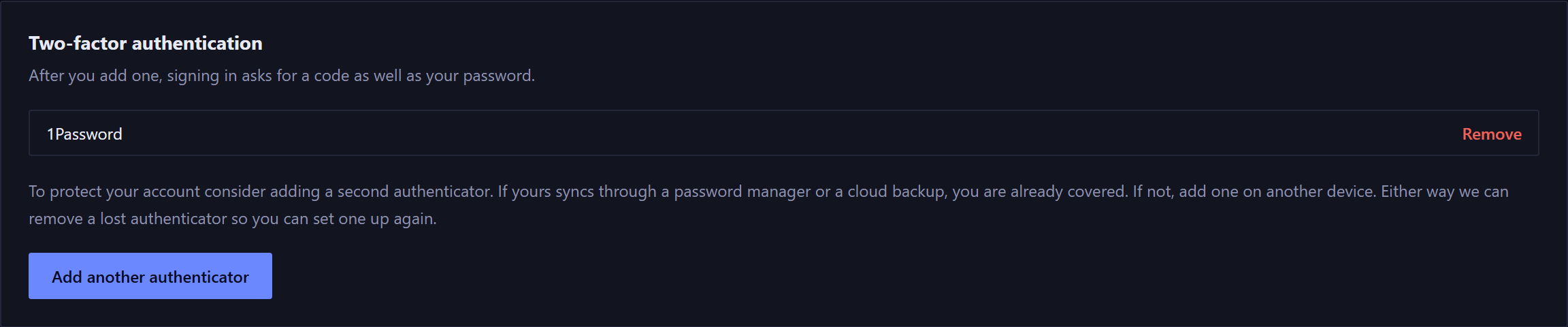
Two-factor is optional. Without it, your password alone opens the account. The Finish setting up panel offers to set one up, and so does the screen your forecast first appears on.
Adding an authenticator means signing in asks for a six-digit code as well as your password. Setup is two steps: name the authenticator so you can tell your devices apart later, then scan the code and confirm.
The name can't be changed afterward, so a name like "Phone" or "1Password" is easier to tell apart than "Authenticator 2".
With exactly one authenticator set up, the card suggests adding a second. If yours syncs through a password manager or a cloud backup, you're already covered. If it lives on one device, add a second somewhere else.
An authenticator you lose can be removed, so you can set up a new one. Removing your only authenticator takes the account back to password only, and asks first. You can add one again at any time. With two set up, removing one may ask for a code from the one you keep.
Your access and billing#
On the Billing tab.

One card, Your access, always says which of three states the account is in. The whole life of an account is in Your trial and your access.
- On trial
- The exact date the trial ends and how many days that is, then "No card is on file and you will not be charged." Below it, read this before you subscribe: subscribing now starts your paid month today, not on the date the trial would have ended. The remaining free days aren't carried over.
- Subscribed
- The date your access runs through, and a Manage subscription button. The wording follows what's going on: "active through" a date normally; "canceled and stays active through" a date once you've canceled, and it won't renew; and "We could not take your last payment", with access continuing while it's retried, if a card fails.
- Read-only
- The date your access lapsed, the date your records are kept until, and how many days that is. Everything stays readable and a backup can still be downloaded. The 90-day timeline.
- The card doesn't say which clock ran out. The red band at the top of every page does: either your trial has ended or your subscription has.


Manage subscription opens Lemon Squeezy, which handles payments for Forecast Commander. In its portal you can cancel, change your plan or update your card: the three-dot menu at the end of the subscription row holds Update and Cancel. The app never sees a card number.
Subscribe monthly and Subscribe yearly open Lemon Squeezy's checkout page, which shows the price and takes the card. When the payment goes through, the card changes to your subscription with its renewal date, and the button becomes Manage subscription.
The two email alerts#
On the Notifications tab.

There are two, and both are off until you turn them on.
- Urgent shortfall warning
- Emails you the moment your forecast shows the balance going below zero, before it happens. At most one a day.
- Morning digest
- Your week ahead: bills due in the next seven days, and a heads-up when things run tight. It's only sent on days there's something to say. It counts the bills and recurring payments you scheduled. Money set aside for goals, and interest accruing on a debt, aren't bills and never trigger it.
Both go to your account address, and both take effect the moment you flip them. The unsubscribe link in either email turns off that one alert, not both.
Timezone#
On the Account tab.
Your daily digest and all date arithmetic follow this zone, not your device and not the server. Set it to where you live: in the wrong zone, the evening of the 31st can already count as next month.
It saves as you change it, with no separate save button.
Finding bills in a bank statement#
Video on YouTube:Find your bills in a bank statement
On the Data tab, which links to a page of its own.
You can download a CSV statement from your bank and let the app find the repeating charges in it, so you don't type every recurring bill.
Bring at least three months of statements. The reader needs 80 days of coverage before it looks for patterns at all, and with less it shows every payee it saw and says so. A monthly bill needs three charges to be read as monthly. Two charges of the same amount on the same day of the month produce a guess, and the page labels it as one. A quarterly bill needs three quarters, and an annual one only ever appears in the payee list.
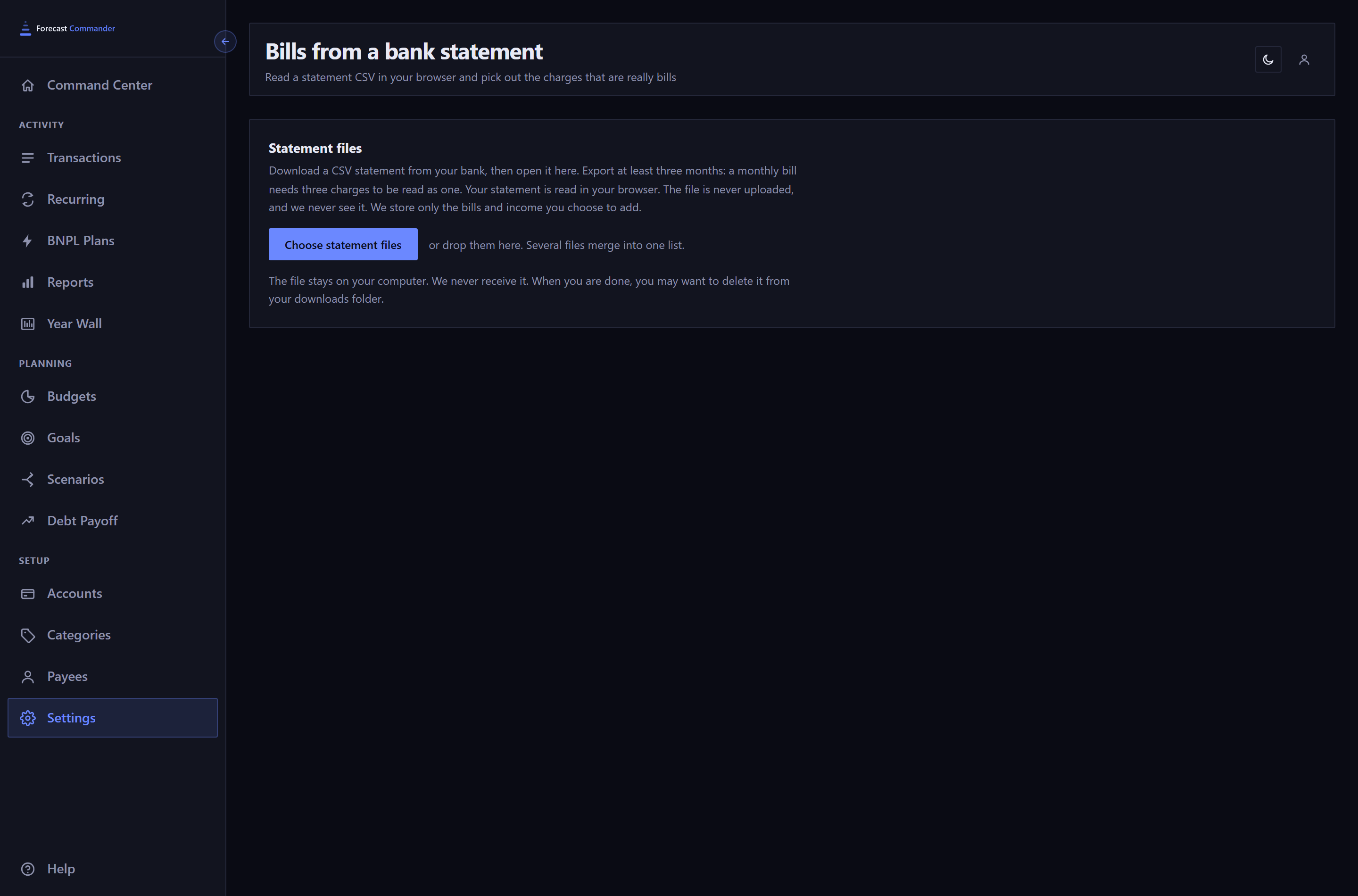
Your statement is read in your browser. The file is never uploaded, and we never see it. The only things that reach the server are the bills and income you choose to add, as ordinary recurring rules.
It sorts what it finds into groups. First, the charges that look like they repeat, each with how often it thinks the bill comes and the dates and amounts it based that on. Then, in their own section, the regular deposits it found, such as a paycheck. Last, two full lists: every payee it saw, largest total first, and every other deposit, in case a quarterly or annual bill, a bonus or a refund only appeared once. In those lists a payee that stopped is marked with the date it was last seen, and Create bill or Add income opens the usual form with the name and its most recent amount filled in.
Nothing is checked by default, and there's no select-all.
If a charge's name matches one of your recurring rules, the row says so and shows that rule's amount and how often it repeats, since adding it again would count the bill twice. The match is by name only, so a rule you named differently from the bank won't be caught.
You can change a row before adding it: its amount, its start date and the account it's paid from. When a bill varies from month to month, the row suggests the average and offers Use the highest, the safer figure to plan around. For income it offers Use the lowest. Edit details opens the full form for anything else.
Starting is filled in with the next date each one is due after the last date in your statements, so the charges and deposits they already show, which are in your balance, aren't counted again.
Check the ones you want and press "Add N to your forecast", where N is how many you checked. They go to the account named at the top of the list unless a row picks another. Each one you add is then marked Added, so pressing again can't add it twice.
Anything it creates is a normal recurring rule, so you can change or remove it from the Recurring page afterward.
Backing up and restoring#
On the Data tab.
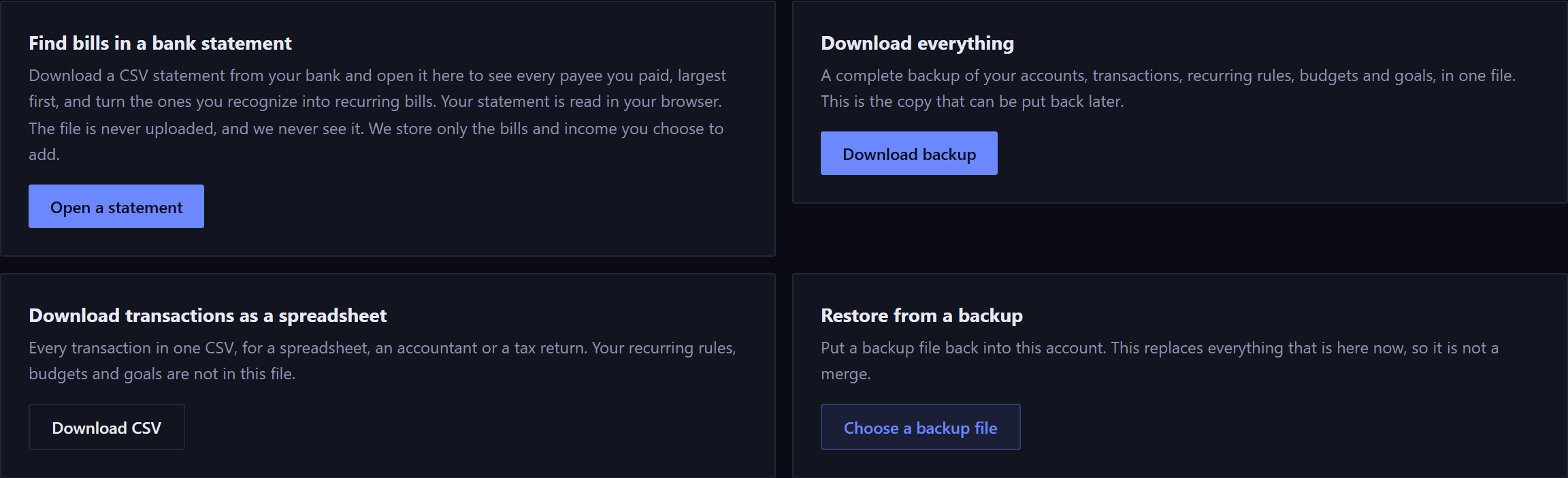
- Download backup
- Everything in one file: accounts, transactions, recurring rules, budgets and goals. It's the only file that can be put back. It's encrypted, ends in .fcbk, and opens only in the account that made it, so it's safe to keep in a Downloads folder or a cloud drive.
- Download CSV
- Every transaction, for a spreadsheet or an accountant. It isn't a backup, since your rules, budgets and goals aren't in it, and it isn't encrypted. Treat it like any other file with your finances in it.
There's no password or key to keep: signing in is what opens the file. To restore, choose the file, check what it holds, and confirm.
A backup opens only for the email address that made it. That includes coming back after deleting your account: sign up again with the same address and your old file works. With a different address it won't, and we can't open it for you. If you change your email address, download a fresh backup afterward.
Restoring replaces everything in the account. Nothing is merged, and anything added since the backup was taken goes. Before it does anything, it shows what the backup holds and what will be replaced, and lets you choose which groups to bring back. Groups the rest depend on are marked Always included and can't be left out.
A backup can only be restored where its original records are gone, so you can't use one to copy an account into another.
Starting over or deleting your account#
On the Danger zone tab.
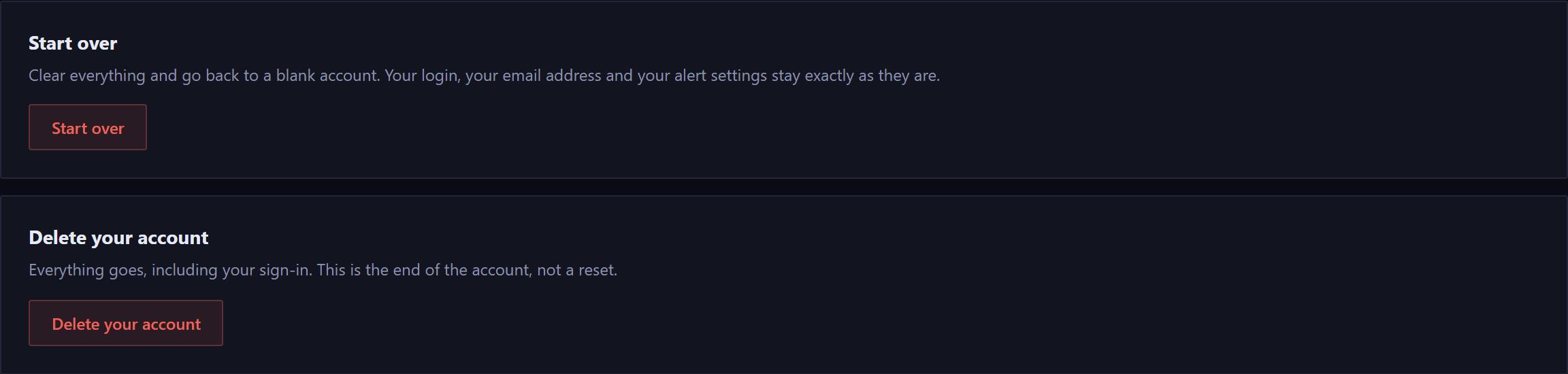
- Start over
- Clears your data and gives you a blank account. You keep your login, your email address and your alert settings, so you can sign straight back in and begin again.
- Delete your account
- Everything goes, including your sign-in. You won't be able to sign in again, and the email address becomes free to sign up with fresh.
Both list exactly what will be deleted, and both offer you a backup first. Each asks you to type something different: Start over takes your email address, and Delete takes the phrase "delete my account".
The delete screen also lists what deletion can't reach: emails already sent, security records holding an address for up to 90 days, and operator backups from the last 30 days.
Settings found elsewhere#
Three things people look for in Settings live somewhere else.
- Light and dark theme
- The icon in the top bar, next to your account menu. It's per device, so it doesn't follow you to another computer.
- Calendar text size
- Chip size, in the Display menu on the calendar itself. Also per device, and the Command Center and Budgets calendars remember it separately.
- Budget period cadence
- Period Settings on the budget period bar. Explained on the Budgets page.
Each account has its own Safety Floor, set on the Accounts page.
New here? See what Forecast Commander does.