Transactions
The full ledger: everything you've recorded, and everything your recurring rules say is still coming, in one table you can filter and edit in bulk.
The screenshots are live captures of a demo account.
Last updated
A list of every entry#
The Command Center shows a month on a calendar. The ledger shows the same entries as a list you can filter, look through and edit in bulk.
Come here to find something, to change several things at once, or to check what has already happened.
When the ledger looks empty#
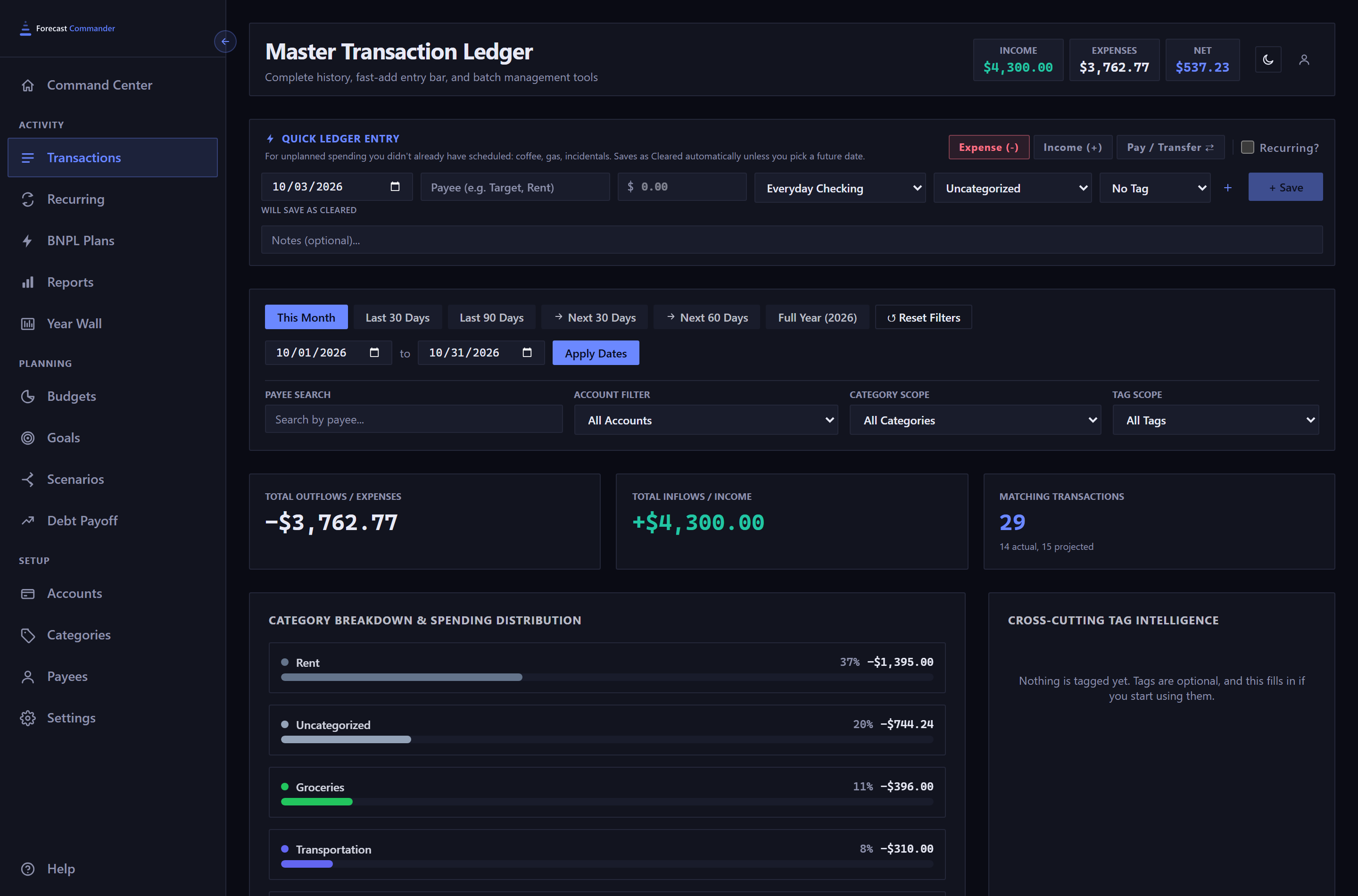
The ledger opens on the current month. If everything you've entered is older, the table is empty, and it can look as if your data has gone.
It's still there. Widen the date range, or press Last 90 Days, and it comes back. The three figures at the top describe whatever you've filtered to, so they move with the range too.
The real empty state looks different. If you have no transactions and no active recurring rules, a panel headed No transactions yet replaces the whole table, with a button to add one.
Filtering#

- The quick ranges
- This Month, Last 30 Days and Last 90 Days look back. Next 30 Days and Next 60 Days look ahead, to what's coming. The one you're on is highlighted.
- The date pair
- Type your dates and press Apply Dates. Every other filter applies as soon as you change it. While a change applies, the table dims and its heading reads Updating..., and the rows you see are the old filter's until the new ones arrive. It takes a second or two.
- Payee Search
- Matches part of a payee name, and applies when you press Enter or click away. Opened from a Top Merchants row, it shows that payee exactly, every installment of a plan included, and says so under the box. Type in the box to go back to searching.
- Category Scope
- A parent category includes all of its subcategories. Uncategorized finds transactions with no category at all.
- Tag Scope
- Filters to one tag, and hides every projected row, since recurring rules don't carry tags. A tag filter only ever matches what has already happened.
- Reset Filters
- Clears all six at once and returns you to the current month.
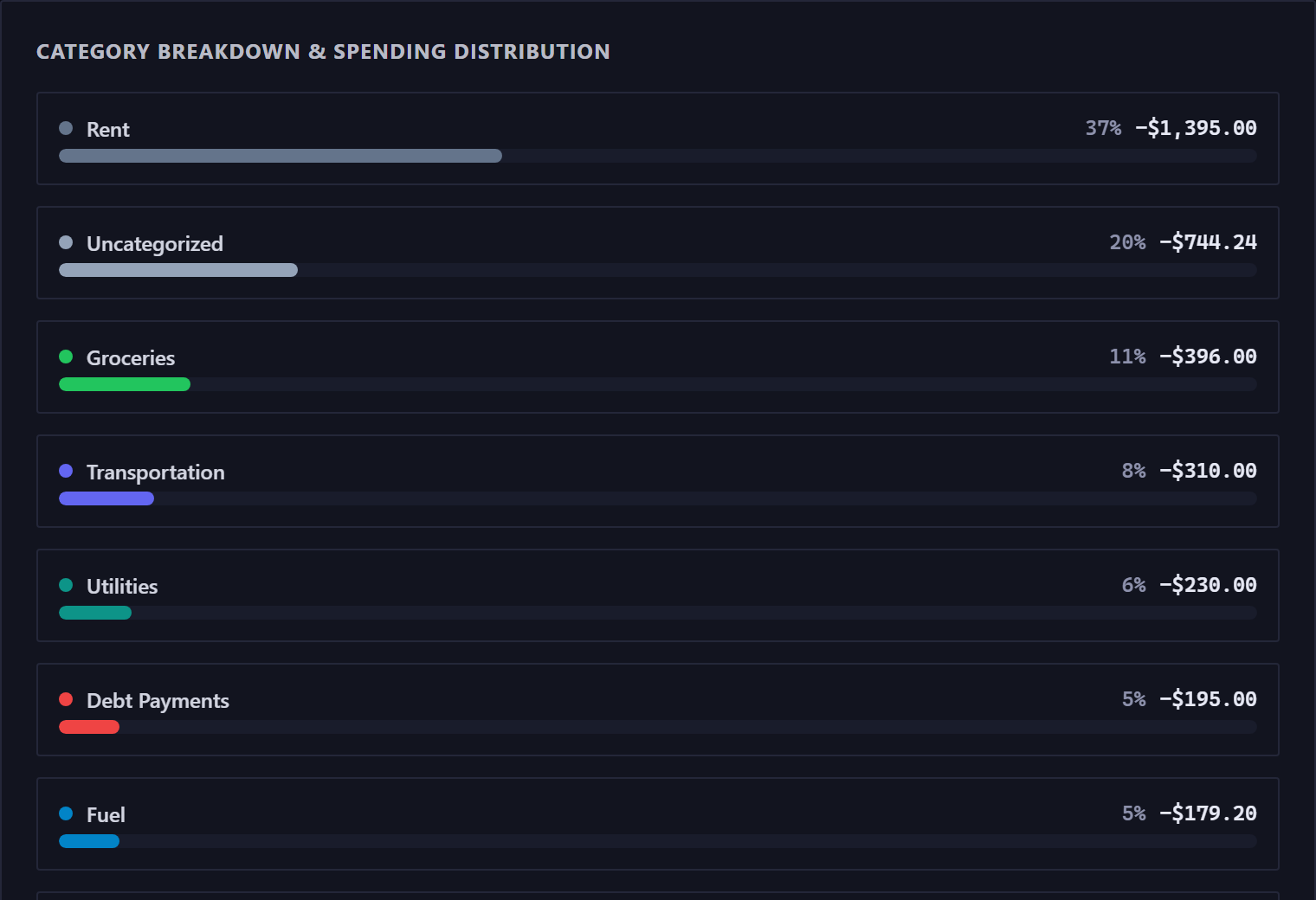
The category and tag panels filter too. Categories are listed largest first. Click a category row to filter the ledger to it, and the row is marked as the active filter. Click it again to clear it.
Real rows and projected rows#
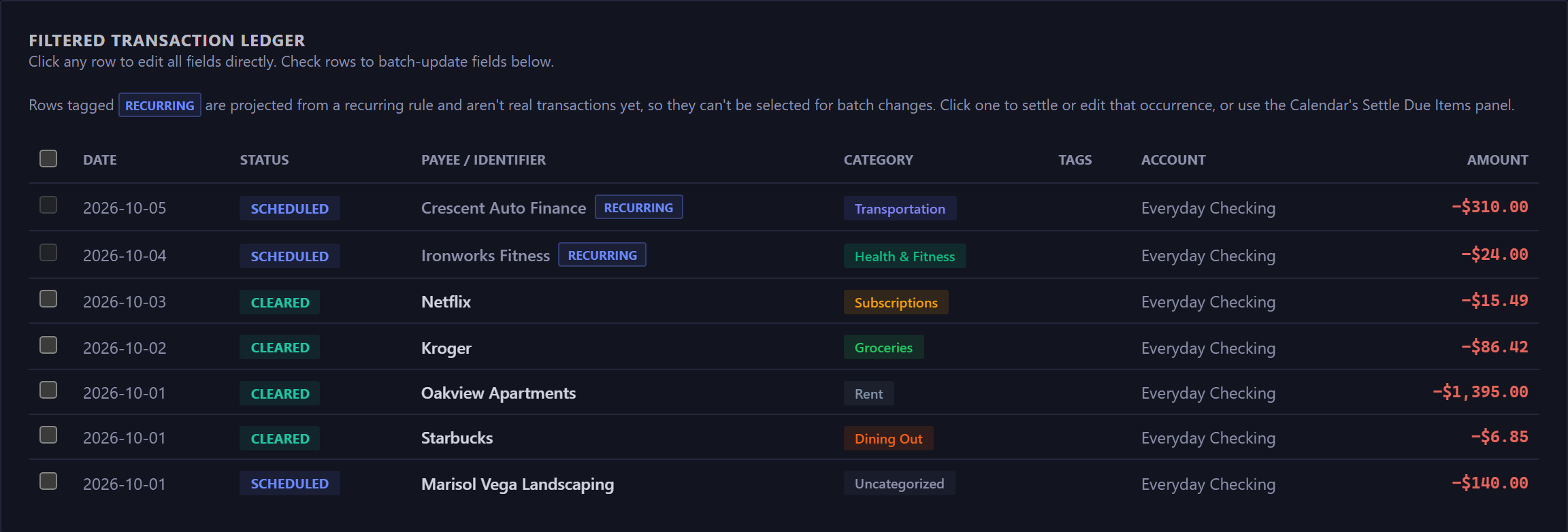
The ledger shows two kinds of row.
- Real transactions
- Things you entered or settled. Full strength, with a working checkbox, and editable in every way.
- Projected rows
- Future dates your recurring rules say are coming. They're grayed, tagged Recurring, and their checkboxes are disabled, since they haven't happened yet. Click one to record it for real, or to change that one date.
The Matching Transactions figure at the top spells out the mix as "N actual, M projected" whenever both are present.
A transaction split across two or more categories shows Split · N categories where the category name would be. Its categories are on the split lines, so it's never Uncategorized.
Transfers sit outside the totals#
Moving money between your own accounts is neither income nor spending. If it counted as spending, a card payment would count your purchases twice.
A transfer between checking and savings, or a credit card payment, shows as a row in the ledger. It doesn't move the Income, Expenses or Net figures at the top, and it isn't in the category or tag breakdowns.
With All Accounts selected you see both halves of a transfer, the money leaving one account and arriving in the other, so one transfer is two rows.
Changing many at once#
Tick any rows and a toolbar appears. It's the fastest way to fix a run of transactions that all need the same change, like a category you started using later than you should have.

Fill in only the fields you want to change and press Apply Batch Changes. Anything left blank stays as it is. Delete Selected removes the rows. It asks first, and warns that the other half of any transfer goes with them.
Setting a batch of rows to Cleared moves any future-dated ones back to today. A cleared entry can't be in the future.
Adding and editing from the ledger#
The Quick Ledger Entry bar is always open at the top of the Transactions page. On the Command Center you open it. It works the same way in both: the date decides whether an entry saves as cleared or scheduled, and ticking Recurring? turns it into a repeating rule.
Click any row to open the full form, the same one the calendar opens, where you can change everything, including splitting the amount across categories. The form has its own guide.
New here? See what Forecast Commander does.