Command Center
The page you land on. It answers whether the money is going to be there, and shows how: a forecast in a sentence, the balances behind it, and the calendar all of it is built from. Back to all help.
The idea behind the panel: A cash flow forecast for your household.
The screenshots are live captures of a demo account.
Last updated
The question it answers#
The Command Center is where you land when you sign in, and it answers one question: is the money going to be there? It takes the bills, paychecks and one-off items you've entered, carries your balance forward a day at a time, and tells you the day your balance is lowest.
Everything on it describes one account at a time, and reads top to bottom: the verdict first, then the money behind it, then the calendar it's all built from.
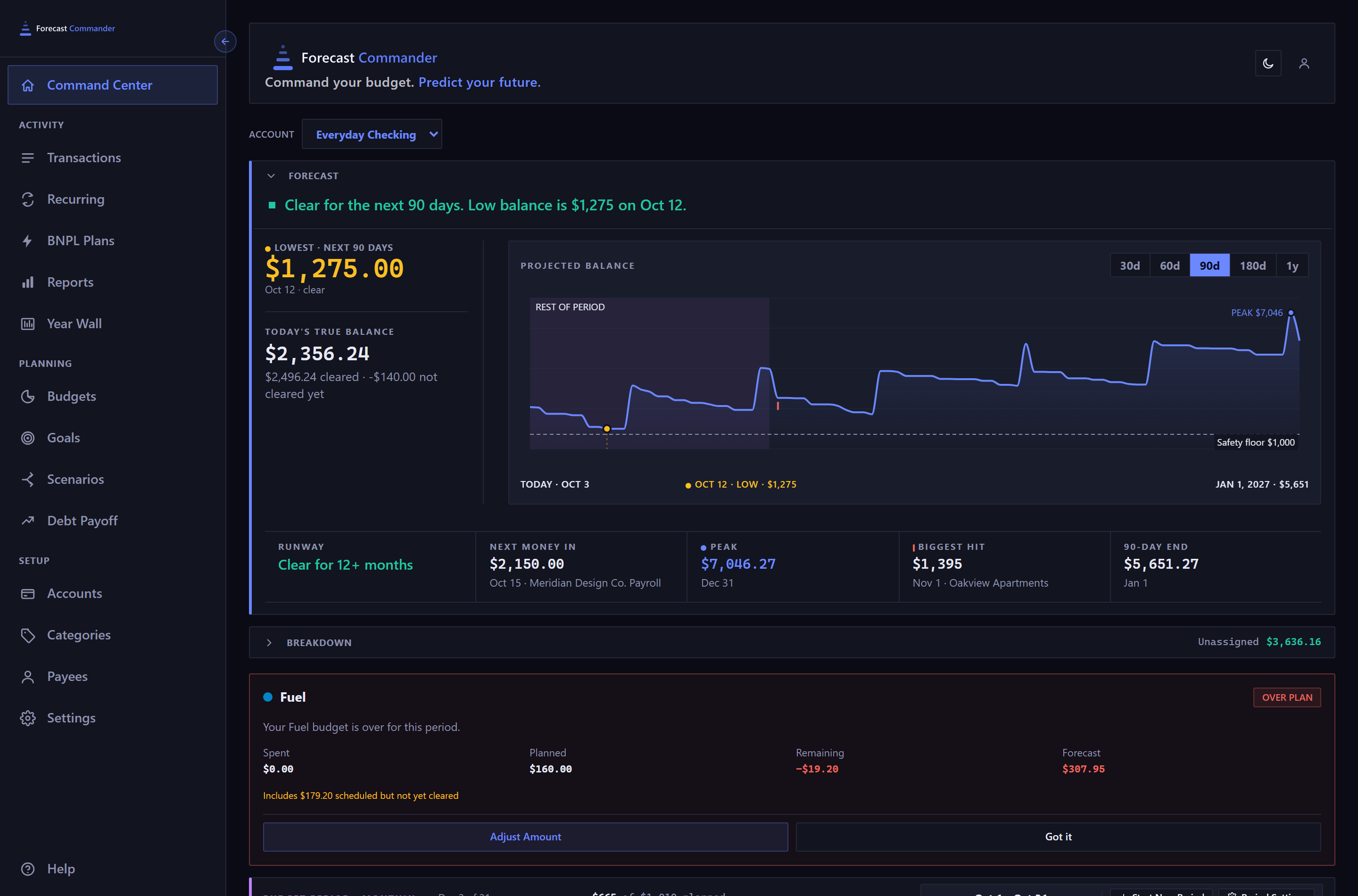
Choosing which account you're looking at#
The Account dropdown sits at the top of the page, and every figure below it belongs to the account selected there. Switching accounts changes the whole page.
When the address names no account, the page opens on your primary account: your first checking account, unless you've chosen another on the Accounts page.

An account you've archived still appears in the list with (Archived) after its name. Pick it and the page explains that its history is kept while new transactions and automations are paused, and offers a Restore button.
Switching accounts also returns you to the current month and the 90-day view. If you were looking at a specific month, you'll need to go back to it.
The forecast panel#
The sentence at the top of the panel is the answer: "Clear for the next 90 days. Low balance is $1,275 on Oct 12." A dip below your safety floor turns it amber, and a balance below zero turns it red.
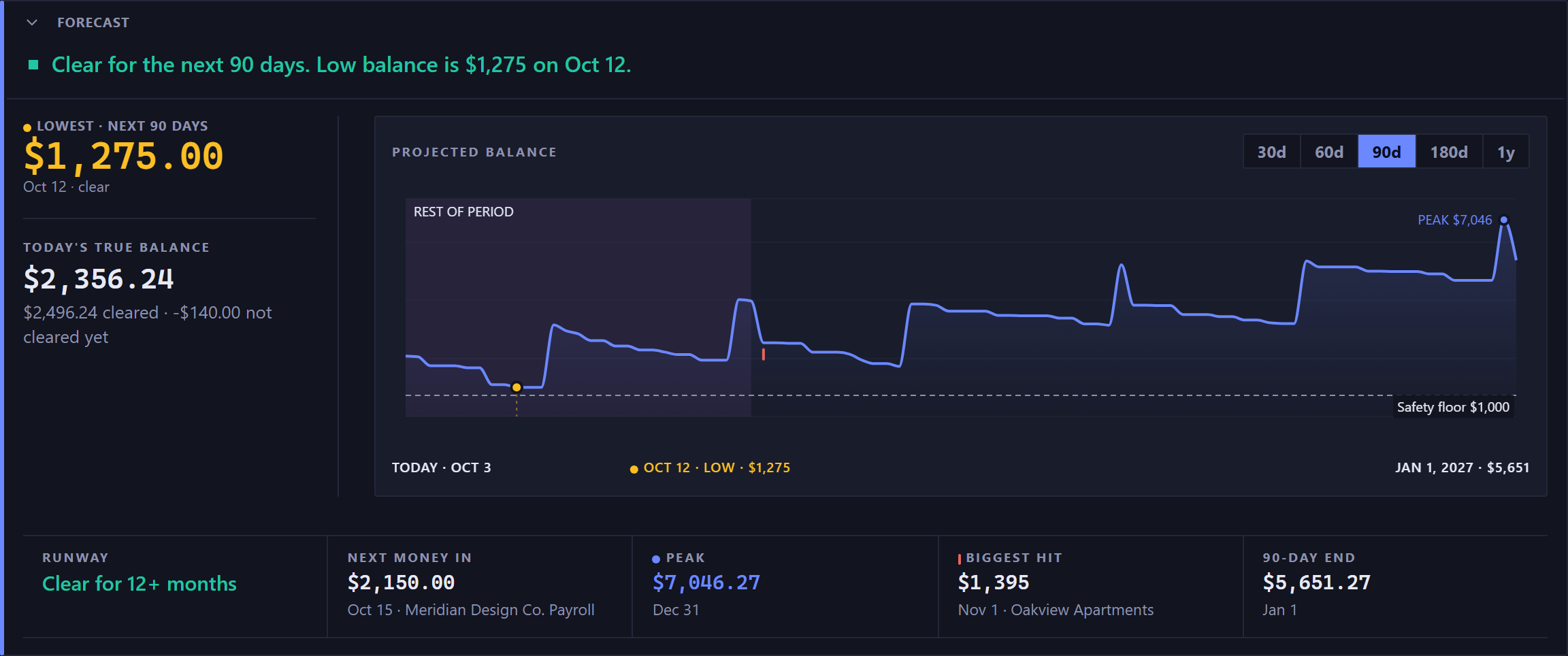
Under the sentence, the figures it's built from:
- Lowest, next 90 days
- The lowest your balance gets inside the window you've selected, and the date it happens. The label changes with the window. On a credit card it reads Highest, since the danger there is owing too much.
- Lowest, this period
- The same low, confined to the budget period you're browsing. It only appears when it differs from the figure beside it, so some days you'll see one and some days two.
- Runway
- How long you stay clear of your safety floor. It looks a full year ahead whatever window you've selected, so it can say "Clear for 12+ months" above a 30-day chart.
- Next money in
- The next day money arrives on this account, how far off it is, and what it is: the amount and who it's from, whether a paycheck, a refund or a one-off deposit. The cash crunch warning, when there is one, covers the same window, so its Next income and this figure always name the same day.
- Cards and loans don't show it, since money in lands on a checking or savings account. A transfer between your own accounts isn't money in: it moves money you already have.
- Today's True Balance
- What your balance really is today, counting things that haven't cleared yet. The small line under it reads something like "$1,240.00 cleared · -$180.00 not cleared yet", and that line is the difference from your bank, which shows only what has posted. Money set aside for goals is still in this figure. Available Balance, one step further along the breakdown below, takes it out.
- Peak
- The highest your balance gets inside the window, and the date. If it reads Peak · today, the forecast only goes down from here: today is as high as it gets.
- The window end
- Where the line finishes, labeled with the window you picked, such as 90-day end. When the peak falls on that same date, only the end is shown.
- Biggest hit, or Safety floor
- The single largest thing going out inside the window, with its payee and date. When nothing is going out inside the window, the same slot shows your safety floor, and on a credit card your debt ceiling.
- Paid down, on a loan
- How much less you'll owe at the end of the window than you owe today: the payments scheduled inside it, less the interest the forecast adds. It only appears when what you owe goes down over the window.
- Payoff date, on a loan
- The month your last scheduled payment clears the loan, with the number of months to go. It counts from your next payment, so it lands on the same month as the end date of the loan's payment on the Recurring page, as long as the payments go as scheduled. When the payoff is further out than the window you've selected, it says beyond this view.
- It needs the loan's interest rate and a payment rule, both set in the loan's payment details on the Accounts page, and a payment that covers the interest. Otherwise the loan never pays off and no date appears.
Not every figure appears every day. Several stand down when they'd only repeat another, so a panel showing three figures and one showing four are both working normally.
The 30d, 60d, 90d, 180d and 1y buttons change how far ahead the panel looks.
The chart beside them has no axis numbers. It shows the shape and where the low sits against your floor, and the exact figures are the ones listed to its left. It marks a dot at the low and at the peak, each with its figure, and the safety floor as a dashed line with its amount. A shaded band shows the rest of the current budget period.
Hover any point on the line to read that day on its own: the date, the projected balance, and whether it's the peak, the low, the biggest hit or today.
You can collapse the whole panel by clicking Forecast. Collapsed, it still shows the low and its date, and it stays collapsed next time you visit.
The breakdown: five balances#
The Breakdown panel starts closed, showing its last figures on one line: if you budget, Set aside, Ready to Budget, Budget Left and Unassigned. Click Breakdown to open the whole arithmetic between what your bank says and what you can safely spend, as one column read top to bottom:
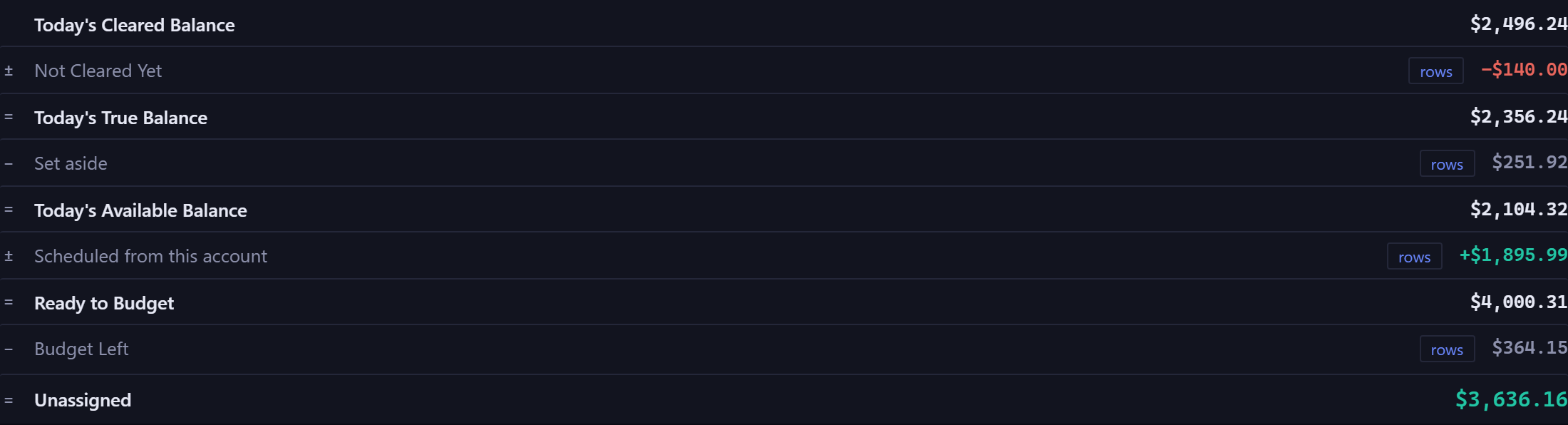
- Today's Cleared Balance
- What has actually posted to the account right now.
- Not Cleared Yet
- Everything dated today or earlier that hasn't posted yet, in either direction. A bill from last week that never cleared is in here.
- Today's True Balance
- The two above, combined.
- Set aside
- Money already committed: earmarked for a savings goal, or carried forward by a budget category. It stays in the account, but you can't spend it.
- Today's Available Balance
- True balance minus what's set aside.
On a checking or savings account the row continues: plus or minus Scheduled from this account, everything still to come on this account's calendar before the period ends, paychecks included, gives Uncommitted. If you budget, on your primary account that figure is called Ready to Budget, and minus Budget Left gives Unassigned.
A category that's over its budget counts as zero in Budget Left: its overage is already spent or already on the calendar, so it's in the balance half and isn't taken out twice. Unassigned going negative means your budgets have committed more than you have.
Browse to another month and the row describes that period, not today.
A future period starts from its Starting Balance, the balance at the end of the day before it begins, which is the prior period's ending balance. Minus what's set aside as of that day gives the period's Available Balance. Scheduled from this account then covers the whole period, so Uncommitted is where the period ends with the reserved money taken out.
A past period reads Starting Balance, plus or minus Posted This Period, equals Ending Balance, with no budgeting terms. On a card the row runs to Ending Balance Owed in every month.
Four of the terms open: Not Cleared Yet, Set aside, Scheduled from this account and Budget Left each show a small arrow, and clicking one lists exactly the items it's made of. A term at $0.00 has nothing to list, so it stays closed.
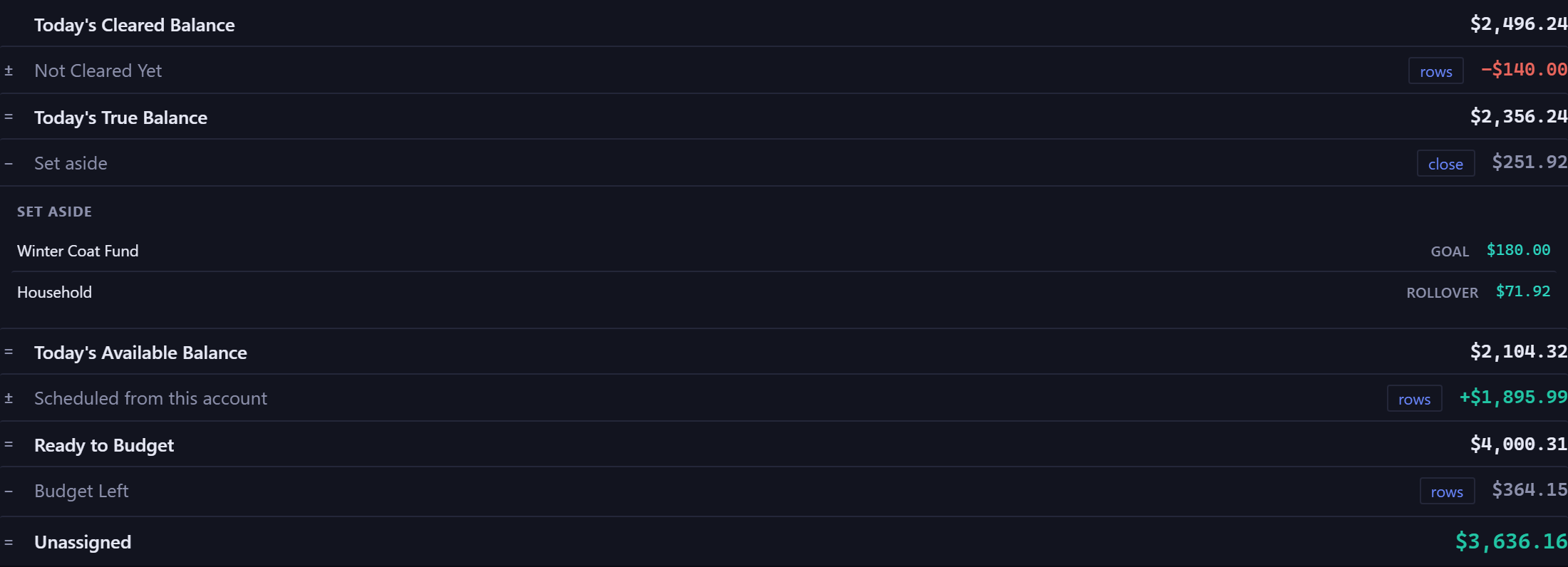
Only one opens at a time, so clicking a second term closes the first. If a list is long it shows the first few and tells you how many more there are, with the rest reachable from the Transactions page.
On every checking and savings account the row reaches Uncommitted, what's left once that account's scheduled items land, with reserved money taken out. Ready to Budget and Budget Left appear on your primary account alone, once you have a category budget or a watch. On a card the row ends at Ending Balance Owed.
The budget period panel#
Closed, the panel is one line: the cadence, how far through the period you are, and what has gone against the plan, with a pill when something needs attention. Click it to open.
If you budget, the panel shows where you are inside the current budget period. It only appears on your main spending account, and only once you have at least one budget or one watched category.
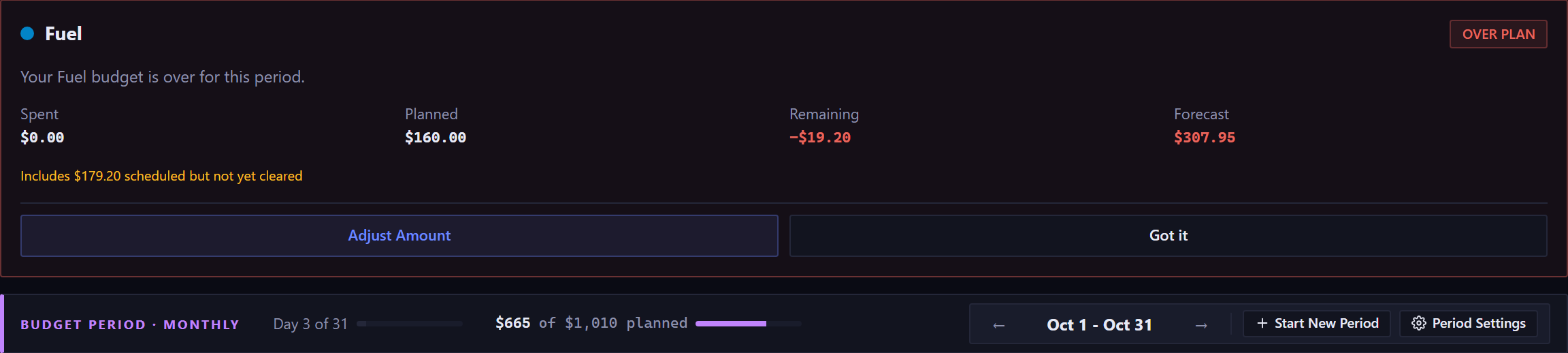
- Day 27 of 31
- How far through the period you are. The bar next to it measures time, not money, so you can see at a glance whether your spending is ahead of the calendar.
- $620 of $900 planned
- What has gone against the plan. It counts scheduled items as well as cleared ones, so a bill that hasn't left your account yet is already in it.
- The arrows and Today
- Move between budget periods. Moving the period also moves the calendar when the two no longer overlap, so the month can change under you.
- Start New Period
- Ends the current period today and begins a new one, which runs to the next natural end of your cadence. It's for irregular income that doesn't arrive on a fixed schedule.
- Period Settings
- Changes how often your budget resets: monthly, twice a month, every two weeks, or a custom interval. A change takes effect from the start of the next period. The period you're in finishes as it was, and past periods keep their dates and labels. It asks you to confirm first, and the confirmation names the date the change takes effect, and the new cadence's first period when that one is shorter or longer than usual.
- When a budget needs attention
- A card for it appears at the top of the open panel, with what was spent, planned, remaining and forecast, and two buttons: Adjust Amount opens the budget so you can change the plan, and Got it dismisses the card for this period without changing anything.
A pill appears in the panel's header when something needs attention. Red means a budget is over, amber means one is only forecast to go over, and blue means the only alerts are watched categories, which are measured but not budgeted.
The cash crunch warning#
When your forecast says the money runs short, the Forecast panel opens with a sentence that says so and names the day: "Below your floor by $150 on Sep 24." when you go below your safety floor, in amber, or "Goes negative on Sep 24." when the balance goes below zero, in red.
See what causes it, beside the sentence or under it on a narrow screen, opens the detail underneath: the low point and its date, when your next income lands, and What's driving it, the payees pushing you down, largest first. Move one of those, or cover it, and the warning changes. When the balance goes below zero, the detail is already open.
If you haven't turned on email alerts, the panel offers to do it from there. Dismiss puts the warning away, and it stays away through a reload and on your next visit. It comes back when the picture changes: a new low date, a different next income day, or a low point that has fallen materially further than the one you dismissed.
Finish setting up#
A panel headed Finish setting up appears while there's still something obvious to add. It lists ten things, each with a line saying why it helps, and ticks them off from your data as you go. You never mark anything done yourself.
Nothing on it is required, and the panel says so. It covers adding income, adding bills, adding your other accounts, setting up categories, adding more bills, recording a one-off, setting a savings goal, adding a buy now, pay later plan, budgeting a category, and adding an authenticator.
It disappears on its own once everything is done. You can also dismiss it early, and bring it back later from the Account tab in Settings.
The calendar#
The calendar is where the forecast comes from. Each day shows what's due and, in its top right corner, what your balance will be at the end of that day. That running figure is the forecast, one day at a time.
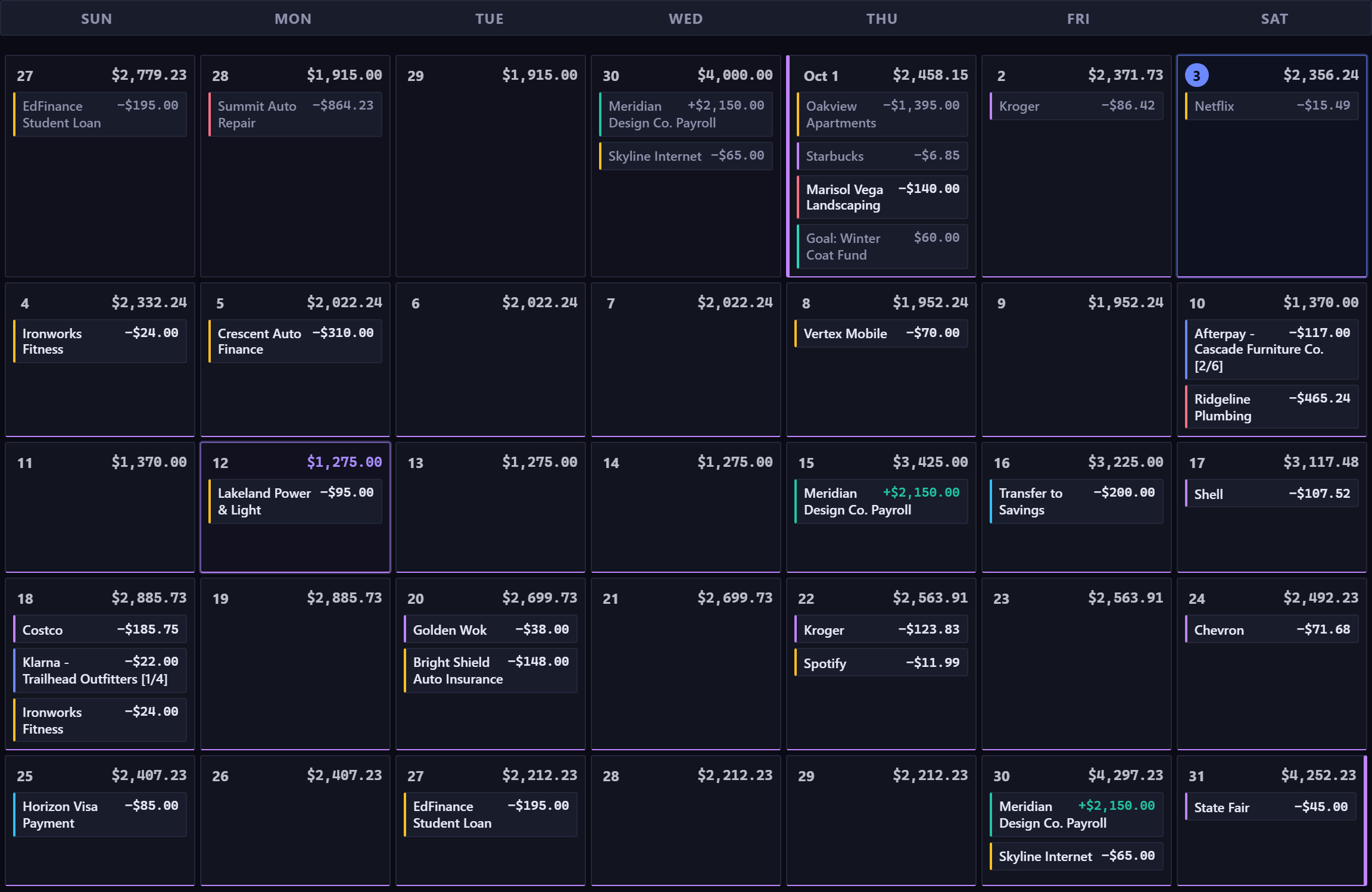

Above the grid:
- The arrows and Today
- Move between months. Today brings you back to this month and to the budget period you're in.
- Calendar and Chart
- Two views of the same months. Chart draws your balance as a line, which makes a slow slide easier to spot.
- Display
- Three view settings in one menu, each remembered on the device you're using, not on your account. Chip size, S, M or L, makes the calendar text bigger or smaller. Period underline turns the purple underline marking your budget period on and off. Type colors turns off the colored bar on each chip, and the key that names the colors.
- Add, Settle Due, Reconcile Balance, Add BNPL Plan
- The four actions. Add and Settle Due have their own sections below. Reconcile Balance records a statement difference, and Add BNPL Plan opens the same form as the BNPL Plans page.
Inside a day, each item is a colored chip. Items that have cleared are muted and ones still scheduled are full strength, so anything overdue and uncleared stands out. The colored bar on the left of a chip says what kind of item it is: income, a recurring bill, a budgeted category, a buy now, pay later installment, a one-off expense, a goal contribution, a transfer between your own accounts, or a balance adjustment.
Adding something quickly#
The Add button above the calendar opens Quick Ledger Entry, a single row for the unplanned spending you didn't already have scheduled: coffee, gas, a parking meter.

Pick Expense (-), Income (+) or Pay / Transfer, type a payee and an amount, and save. After saving it keeps the account, category and tag you chose and clears only the payee and amount, so entering several things in a row is quick.
The date decides whether an entry is cleared or scheduled: today or earlier saves as cleared, and a future date saves as scheduled. The line under the date field tells you which before you save.
Tick Recurring? and the same row creates a repeating rule, with a cadence, an optional end date and a Weekend Shift.
Settling what's due#
Scheduled items don't clear themselves. When something you scheduled has happened, you tell the app, and Settle Due does that for everything at once.
The button carries a count of everything dated today or earlier that hasn't cleared yet. That count looks at your whole forecast, not just the month you're looking at, so an overdue item from six weeks ago is included.
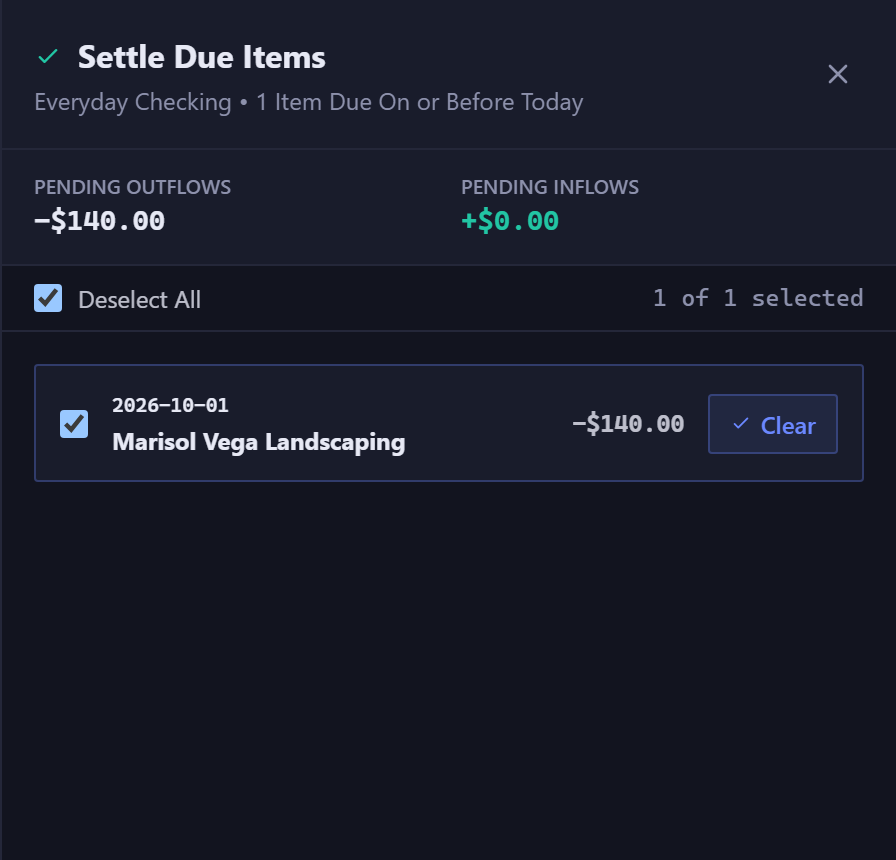
Everything starts selected. Untick anything that hasn't happened, then press Settle Selected. Each row also has its own Clear button, to go one at a time. Close Panel, the close button or Escape closes the panel without settling anything.
Settling isn't the same as Reconcile Balance, the other button on that row. Settling says a specific item happened. Reconciling says your statement disagrees with the app, and records the difference. Contributions toward a savings goal aren't in this list, and never need settling: a contribution counts from its date.
Opening a day and editing what's on it#
Click any empty day to add something dated to it. Click any chip to open that item and change it.
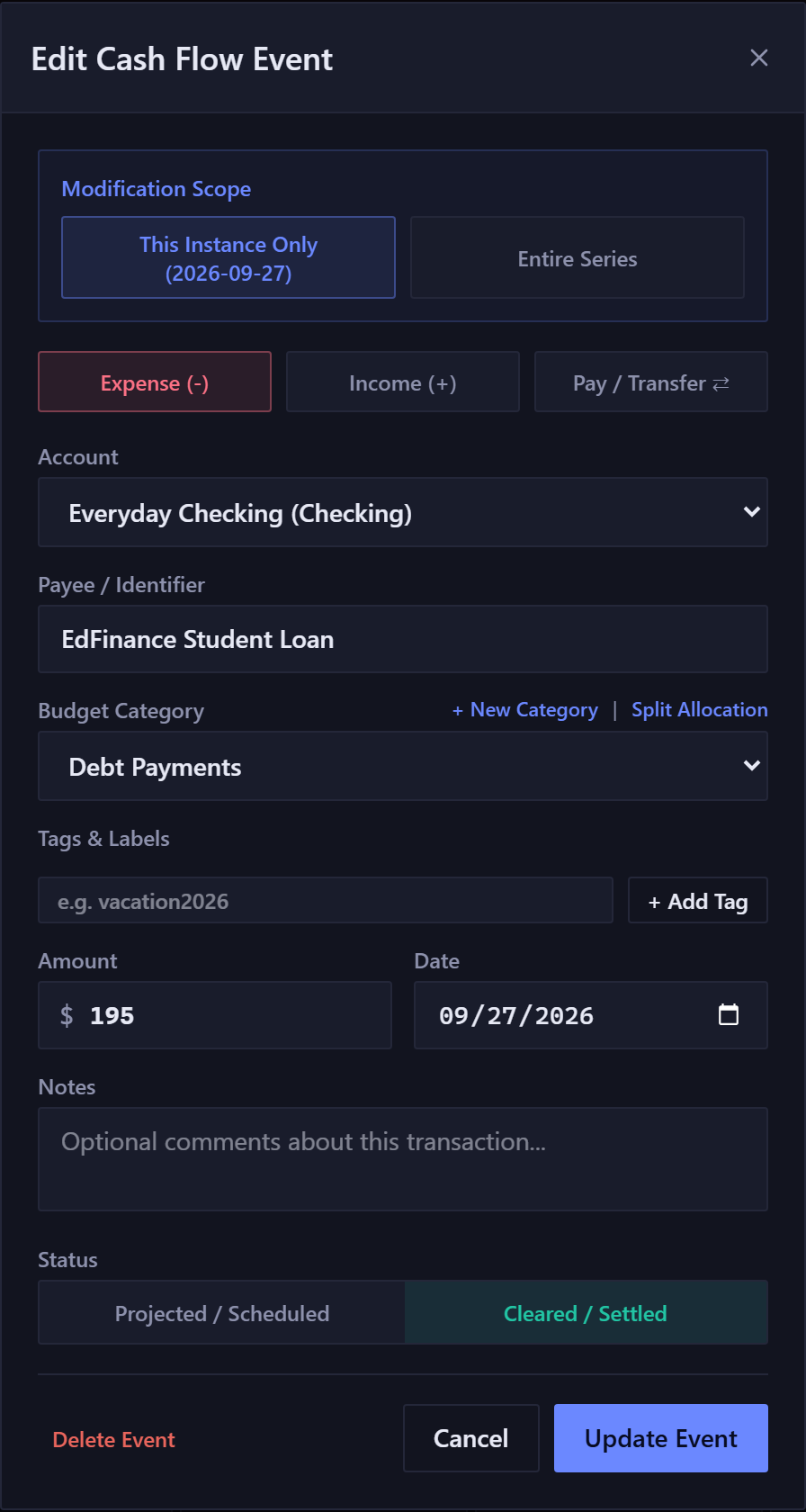
The form covers the account, payee, category, tags, amount, date and notes, and it's the same form everywhere in the app. Editing an item adds a Delete Event button at the foot, which asks you to confirm before it removes anything.
If the item came from a recurring rule, a Modification Scope choice appears at the top with two buttons, This Instance Only and Entire Series. The first changes one date and leaves the rest of the schedule alone. The second changes the rule, and so every future date it produces.
A contribution toward a savings goal opens a smaller window of its own. It isn't a transaction and never moves your balance, so there's nothing to edit beyond the amount.
Using the calendar without a mouse#
The whole month grid is one stop on the Tab key, so tabbing through the page doesn't trap you in it. Once you're on the calendar, a hint appears saying what the keys do. The first time you tab in, you land on today if this month is showing, and a screen reader says it's today.
- Arrow keys
- Move between days. Left and right run on across the end of a row into the next one, so you can walk a month without thinking about weeks.
- Home and End
- Jump to the first or last day of the week you're on.
- Enter, on an empty day
- Opens the form to add something dated to it.
- Enter, on a day with items
- Moves you into that day. You land first on a button to add a transaction on that date, and arrowing on from there steps through the day's items one at a time.
- Escape
- Comes back out of the day to the day itself.
- Tab
- Leaves the calendar entirely, from wherever you are inside it.
Every item on the calendar is reachable this way, so every transaction can be created, opened and edited without a pointer.
The chart view#
Chart in the control row swaps the grid for the same information as a line. The calendar is better for a particular day, and the chart for a slow slide you wouldn't notice one square at a time.
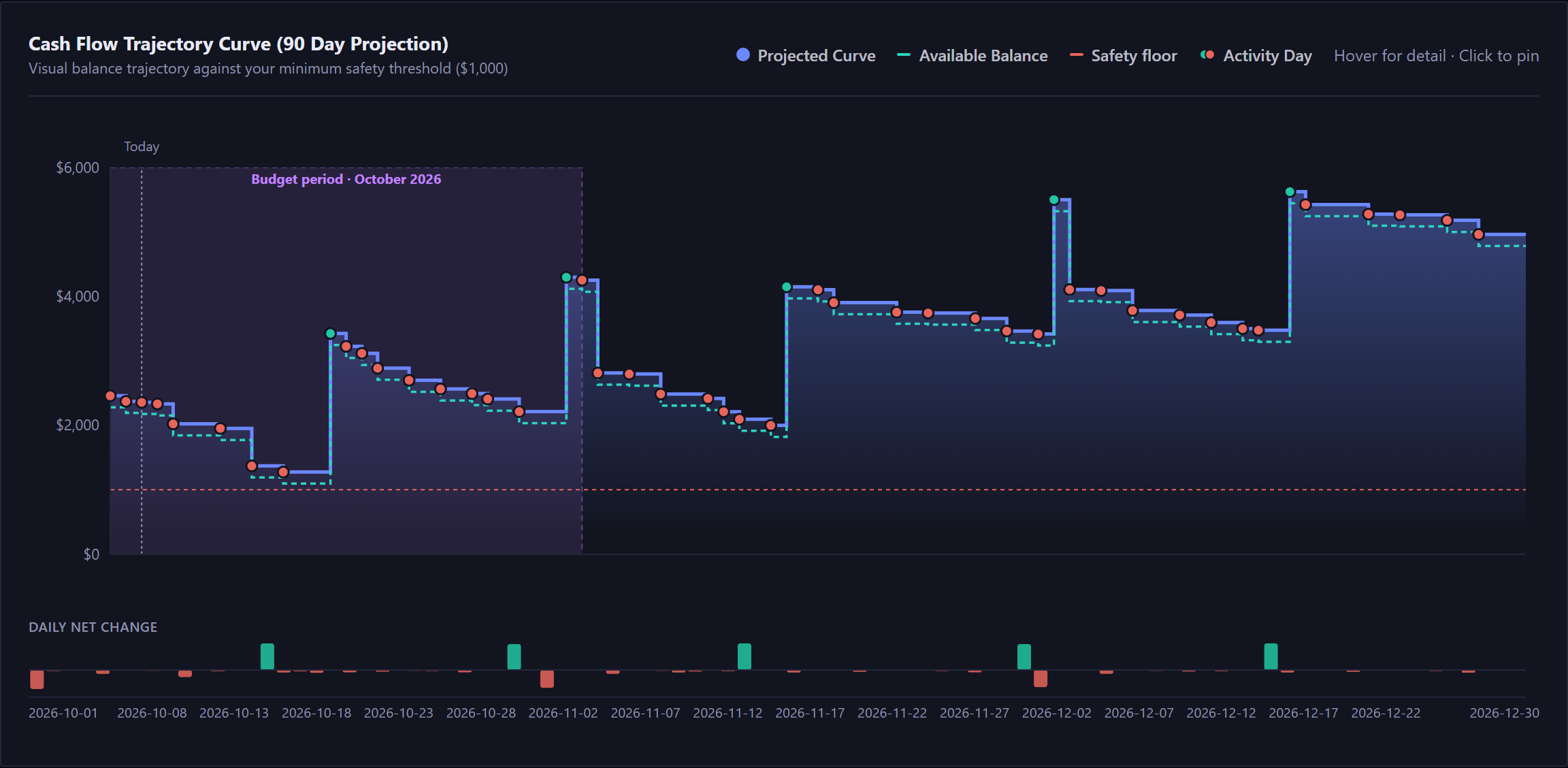
The dashed horizontal line is your safety floor, and the dashed vertical one is today. Dots mark days with activity, green where the day nets positive and red where it nets negative.
Hover any point for that day's detail, and click it to pin the detail open, so you can read it without holding the pointer still. When money is set aside for a savings goal, a second dashed line shows your available balance beneath the projected one, and the gap between them is what your goals are holding.
Underneath sits a second, smaller chart of Daily Net Change, one bar per day. The top chart shows where your balance is going, and the bottom one what moved it.
Two things behave differently here. The Horizon buttons on this view change how much of the chart you see, and they reset the month you were browsing. The four action buttons are calendar-only, so adding, settling and reconciling all live on the other view.
New here? See what Forecast Commander does.